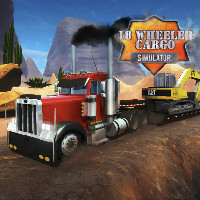
18 WHEELER CARGO SIMULATOR















SIMILAR GAMES
































Description


18 Wheeler Cargo Simulator - Unblocked Games at School
About 18 Wheeler Cargo Simulator - Unblocked Games at School
The 18 Wheeler Cargo Simulator offers an immersive experience for students seeking realistic truck driving challenges within a browser based environment. Designed to be accessible from educational networks, the game runs smoothly on school computers without requiring downloads or plug‑ins. Players assume the role of a professional hauler tasked with transporting valuable freight across diverse landscapes while adhering to traffic regulations and time constraints. The unblocked nature of the title ensures that learners can engage during breaks or free periods, reinforcing problem‑solving skills and spatial awareness.
Gameplay Mechanics and Features
Understanding the core mechanics enhances enjoyment and mastery. The following list outlines essential components that define the simulation:
- Authentic Truck Models – Each vehicle mirrors real world counterparts with detailed interior dashboards and engine sounds.
- Dynamic Weather System – Rain, fog, and night cycles affect visibility and handling, demanding adaptive driving techniques.
- Cargo Variety – Players manage different load types, from fragile electronics to heavy machinery, influencing route planning.
- Traffic AI – Intelligent NPC drivers follow realistic patterns, creating genuine overtaking and braking scenarios.
- Fuel Management – A fuel gauge requires strategic refueling stops, encouraging careful route selection.
How to Start a Session
Upon entering the 18 Wheeler Cargo Simulator page, users click the Start Game button, choose a truck, and select a destination. The tutorial automatically guides newcomers through basic controls such as steering, braking, and gear shifting. Completing the tutorial unlocks the main map, where a list of cargo missions appears.
Strategic Tips for Success
Mastery of the simulator hinges on thoughtful planning and execution. Consider the following approaches to maximize efficiency and score:
- Map the Route – Use the in‑game map to identify the shortest yet safest path, avoiding steep grades when carrying heavy loads.
- Adjust Speed for Conditions – Reduce velocity during adverse weather to maintain control and prevent cargo damage.
- Utilize Rest Stops – Refuel and repair at designated stations to keep the truck operational throughout long hauls.
- Monitor Cargo health – Observe the cargo indicator; sudden drops signal improper handling and may affect scoring.
Educational Benefits
Beyond entertainment, the simulator supports several learning objectives:
- Developing spatial reasoning by navigating complex road networks.
- Enhancing decision‑making through risk assessment during traffic encounters.
- Learning basic logistics by managing delivery schedules and cargo specifications.
- Improving hand‑eye coordination via precise control of steering and braking inputs.
Safety and Accessibility
All gameplay occurs within a secure, sandbox environment. The platform imposes no harmful content and respects user privacy, storing only minimal session data. Accessibility options include adjustable font sizes for on‑screen instructions and customizable control layouts to accommodate diverse physical abilities.
Community and Updates
The developers regularly release patches that introduce new truck models, expand cargo categories, and refine physics engines. Community forums hosted on the site allow players to share strategies, suggest improvements, and discuss upcoming features. Engaging with these discussions enriches the overall experience and fosters collaborative learning.
How to Access the Simulator
Visit the official portal at https://ubgatschool.gitlab.io/ to launch 18 Wheeler Cargo Simulator. No registration is required; simply select the desired game mode and begin playing instantly. The site remains optimized for school networks, ensuring rapid load times and minimal latency.
Conclusion
By combining realistic truck physics, engaging mission design, and educational value, the 18 Wheeler Cargo Simulator stands as a premier unblocked game for school environments. Its comprehensive feature set invites learners to explore logistics, sharpen cognitive abilities, and experience the thrill of professional hauling — all within a safe, accessible online platform.
Play 18 Wheeler Cargo Simulator for free on Unblocked Games at School,
Discover a platform packed with thousands of top-tier games, completely ad-free and simple to enjoy from any location. Get ready for endless fun with our unblocked games—play using your keyboard or just a click!
How to Play Unblocked Games on ubgatschool.gitlab.io
Steps to Play
Playing unblocked games on ubgatschool.gitlab.io is straightforward and designed for quick access, especially in environments like schools where gaming sites might be restricted. Follow these steps to get started:
- Access the Website: Open a web browser (Chrome, Firefox, or Edge work well) and navigate to ubgatschool.gitlab.io. The site is optimized for instant play, so no downloads or installations are needed.
- Browse the Game Library: Once on the homepage, you’ll see a collection of games across various genres like action, adventure, puzzle, sports, or strategy. Scroll through or use any available search or category filters to find a game that interests you.
- Select a Game: Click on a game’s icon or title. The site is designed to load games directly in your browser, often in fullscreen mode for an immersive experience.
- Start Playing: Most games launch immediately without additional setup. Some may have a brief loading screen. If a game offers customizable settings (like graphics or sound), adjust them before starting for the best experience.
- Bypass Restrictions (if needed): If the site is blocked on a school network, try accessing it via a different device or network. Some users report success by using .io or GitLab links, as these are less likely to be flagged by filters.
- Enjoy Ad-Free Gaming: The platform aims to provide an uninterrupted experience, so you can focus on gameplay without pop-ups or ads.
Game Controls
Controls vary by game genre, but below are common setups for popular types of games you’re likely to find on ubgatschool.gitlab.io. Check individual game instructions for specific details, as some titles may use unique configurations.
Action/Platformer Games (e.g., Stickman games, Retro Bowl)
- Arrow Keys or WASD: Move character left, right, up, or jump.
- Spacebar: Attack, shoot, or perform special actions.
- Shift: Sprint or dodge (in some games).
- Mouse Click: Aim or interact with objects (if applicable).
Puzzle/Strategy Games (e.g., 2048, Geometry Dash)
- Arrow Keys: Navigate tiles, pieces, or menus.
- Mouse Click/Drag: Select or move items (common in match-3 or building games).
- Spacebar: Pause or confirm selections.
- Enter: Start or restart the game.
Sports/Racing Games (e.g., Slope Game)
- Arrow Keys or WASD: Steer vehicle or control player movement.
- Spacebar: Accelerate or jump.
- Shift: Brake or boost (in racing titles).
- Mouse: Adjust camera angle or aim (in some sports games).
Multiplayer/Arcade Games (e.g., Slither.io)
- Mouse: Guide character or cursor (especially in .io-style games).
- Left Click: Boost speed or activate abilities.
- Arrow Keys: Alternative movement controls in some titles.
- Spacebar: Pause or trigger special moves.
Tips for Smooth Gameplay
- Check Game Instructions: Many games include a tutorial or control guide on the start screen.
- Adjust Settings: If a game feels laggy, lower graphics settings (if available) to match your device’s capabilities.
- Stay Responsive: Some games, especially action titles, rely on quick reactions, so ensure your keyboard or mouse is functioning well.
- Bookmark the Site: Save ubgatschool.gitlab.io for easy access during breaks.
This setup should help you dive into gaming on ubgatschool.gitlab.io with ease. If you add specific games or control schemes later, consider including a “Controls” section on each game’s page for clarity. Enjoy gaming!
How to Play Unblocked Games on ubgatschool.gitlab.io
Steps to Play
Playing unblocked games on ubgatschool.gitlab.io is straightforward and designed for quick access, especially in environments like schools where gaming sites might be restricted. Follow these steps to get started:
- Access the Website: Open a web browser (Chrome, Firefox, or Edge work well) and navigate to ubgatschool.gitlab.io. The site is optimized for instant play, so no downloads or installations are needed.
- Browse the Game Library: Once on the homepage, you’ll see a collection of games across various genres like action, adventure, puzzle, sports, or strategy. Scroll through or use any available search or category filters to find a game that interests you.
- Select a Game: Click on a game’s icon or title. The site is designed to load games directly in your browser, often in fullscreen mode for an immersive experience.
- Start Playing: Most games launch immediately without additional setup. Some may have a brief loading screen. If a game offers customizable settings (like graphics or sound), adjust them before starting for the best experience.
- Bypass Restrictions (if needed): If the site is blocked on a school network, try accessing it via a different device or network. Some users report success by using .io or GitLab links, as these are less likely to be flagged by filters.
- Enjoy Ad-Free Gaming: The platform aims to provide an uninterrupted experience, so you can focus on gameplay without pop-ups or ads.
Game Controls
Controls vary by game genre, but below are common setups for popular types of games you’re likely to find on ubgatschool.gitlab.io. Check individual game instructions for specific details, as some titles may use unique configurations.
Action/Platformer Games (e.g., Stickman games, Retro Bowl)
- Arrow Keys or WASD: Move character left, right, up, or jump.
- Spacebar: Attack, shoot, or perform special actions.
- Shift: Sprint or dodge (in some games).
- Mouse Click: Aim or interact with objects (if applicable).
Puzzle/Strategy Games (e.g., 2048, Geometry Dash)
- Arrow Keys: Navigate tiles, pieces, or menus.
- Mouse Click/Drag: Select or move items (common in match-3 or building games).
- Spacebar: Pause or confirm selections.
- Enter: Start or restart the game.
Sports/Racing Games (e.g., Slope Game)
- Arrow Keys or WASD: Steer vehicle or control player movement.
- Spacebar: Accelerate or jump.
- Shift: Brake or boost (in racing titles).
- Mouse: Adjust camera angle or aim (in some sports games).
Multiplayer/Arcade Games (e.g., Slither.io)
- Mouse: Guide character or cursor (especially in .io-style games).
- Left Click: Boost speed or activate abilities.
- Arrow Keys: Alternative movement controls in some titles.
- Spacebar: Pause or trigger special moves.
Tips for Smooth Gameplay
- Check Game Instructions: Many games include a tutorial or control guide on the start screen.
- Adjust Settings: If a game feels laggy, lower graphics settings (if available) to match your device’s capabilities.
- Stay Responsive: Some games, especially action titles, rely on quick reactions, so ensure your keyboard or mouse is functioning well.
- Bookmark the Site: Save ubgatschool.gitlab.io for easy access during breaks.
This setup should help you dive into gaming on ubgatschool.gitlab.io with ease. If you add specific games or control schemes later, consider including a “Controls” section on each game’s page for clarity. Enjoy gaming!