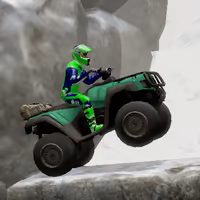
BIKE TRIALS WINTER 2















SIMILAR GAMES
































Description


Bike Trials Winter 2 - Unblocked Games at School
About Bike Trials Winter 2 - Unblocked Games at School
Bike Trials Winter 2 is a challenging physics‑based motorcycle game that tests precision, balance, and strategic thinking. Set in a snowy landscape, the game offers a variety of levels that require players to navigate steep hills, icy slopes, and hidden obstacles while performing tricks and collecting rewards. The unblocked version ensures that students can access the game from school computers without restrictions, making it a popular choice for after‑class entertainment.
Game Overview
The core of Bike Trials Winter 2 revolves around mastering the bike’s suspension and momentum. Each level presents a unique layout, featuring ramps, walls, and narrow pathways that demand precise timing. Players earn points by completing courses quickly and by executing flawless tricks, which can be used to upgrade the bike’s performance attributes such as speed, handling, and stability.
Winter Theme Details
The winter setting introduces visual elements like falling snowflakes, frosted surfaces, and frosted backgrounds that enhance immersion. These aesthetic details are not merely decorative; they affect gameplay by introducing slippery surfaces that require careful throttle control. The temperature motif also includes dynamic weather changes, such as gusts of wind that can push the rider off course, adding an extra layer of difficulty.
How to Play Bike Trials Winter 2 Unblocked
Step‑by‑Step Controls
- Arrow Keys – Move the bike forward, backward, and tilt for balance.
- Space Bar – Perform jumps to clear obstacles or execute tricks.
- Shift – Activate boost when available, granting a temporary speed increase.
Mastering these controls is essential for progressing through the more intricate levels, where timing each input can mean the difference between success and a restart.
Performance Tips
- Anticipate Physics: Observe the trajectory of the bike before committing to a jump.
- Use Small Adjustments: Micro‑tilts often prevent crashes on icy sections.
- Collect Power‑Ups: Hidden items provide temporary upgrades that make difficult sections easier.
- Practice Replays: Reviewing a failed attempt helps identify precise error points.
Key Features
Bike Trials Winter 2 includes a wide array of features designed to keep players engaged:
- Multiple Levels: Over 30 distinct courses ranging from beginner to expert difficulty.
- Customization Options: Unlock new bike skins and accessories as you earn points.
- Leaderboards: Compare your scores with classmates and global players.
- Achievement System: Earn badges for completing milestones such as “First Perfect Run”.
- Responsive Controls: Smooth animation and realistic physics ensure an immersive experience.
Community and Multiplayer
Although primarily a single‑player experience, Bike Trials Winter 2 encourages friendly competition through shared leaderboards. Students often organize mini‑tournaments during lunch breaks, fostering a sense of camaraderie while sharpening their skills. Online forums linked to the UBG at School platform allow players to exchange strategies, discuss level shortcuts, and suggest new challenge ideas.
Safety and School Environment
The unblocked version is hosted on the school’s trusted gaming portal, ensuring that no external downloads or advertisements appear. This setup protects devices from malware and keeps the gaming experience focused. Teachers can monitor usage through the portal’s built‑in analytics, promoting responsible gaming habits among students.
Frequently Asked Questions
Can I play Bike Trials Winter 2 on a mobile device? The game is optimized for desktop browsers, but a simplified version may be accessible through mobile browsers via the same portal.
Is there a limit to how many times I can restart a level? No, the game allows unlimited restarts to encourage experimentation and learning.
Do I need to install any plugins? No additional plugins are required; the game runs directly in the browser using HTML5 technology.
How can I share my high score? Use the “Share” button on the results screen to copy a link that can be posted on the school’s gaming board.
Conclusion
Bike Trials Winter 2 offers an exciting blend of skill‑based gameplay, winter aesthetics, and community interaction, all accessible through the UBG at School platform. By mastering the controls, leveraging power‑ups, and engaging with peers, students can enjoy a rewarding experience that sharpens reflexes and strategic thinking while staying within a safe, school‑approved environment.
Play Bike Trials Winter 2 for free on Unblocked Games at School,
Discover a platform packed with thousands of top-tier games, completely ad-free and simple to enjoy from any location. Get ready for endless fun with our unblocked games—play using your keyboard or just a click!
How to Play Unblocked Games on ubgatschool.gitlab.io
Steps to Play
Playing unblocked games on ubgatschool.gitlab.io is straightforward and designed for quick access, especially in environments like schools where gaming sites might be restricted. Follow these steps to get started:
- Access the Website: Open a web browser (Chrome, Firefox, or Edge work well) and navigate to ubgatschool.gitlab.io. The site is optimized for instant play, so no downloads or installations are needed.
- Browse the Game Library: Once on the homepage, you’ll see a collection of games across various genres like action, adventure, puzzle, sports, or strategy. Scroll through or use any available search or category filters to find a game that interests you.
- Select a Game: Click on a game’s icon or title. The site is designed to load games directly in your browser, often in fullscreen mode for an immersive experience.
- Start Playing: Most games launch immediately without additional setup. Some may have a brief loading screen. If a game offers customizable settings (like graphics or sound), adjust them before starting for the best experience.
- Bypass Restrictions (if needed): If the site is blocked on a school network, try accessing it via a different device or network. Some users report success by using .io or GitLab links, as these are less likely to be flagged by filters.
- Enjoy Ad-Free Gaming: The platform aims to provide an uninterrupted experience, so you can focus on gameplay without pop-ups or ads.
Game Controls
Controls vary by game genre, but below are common setups for popular types of games you’re likely to find on ubgatschool.gitlab.io. Check individual game instructions for specific details, as some titles may use unique configurations.
Action/Platformer Games (e.g., Stickman games, Retro Bowl)
- Arrow Keys or WASD: Move character left, right, up, or jump.
- Spacebar: Attack, shoot, or perform special actions.
- Shift: Sprint or dodge (in some games).
- Mouse Click: Aim or interact with objects (if applicable).
Puzzle/Strategy Games (e.g., 2048, Geometry Dash)
- Arrow Keys: Navigate tiles, pieces, or menus.
- Mouse Click/Drag: Select or move items (common in match-3 or building games).
- Spacebar: Pause or confirm selections.
- Enter: Start or restart the game.
Sports/Racing Games (e.g., Slope Game)
- Arrow Keys or WASD: Steer vehicle or control player movement.
- Spacebar: Accelerate or jump.
- Shift: Brake or boost (in racing titles).
- Mouse: Adjust camera angle or aim (in some sports games).
Multiplayer/Arcade Games (e.g., Slither.io)
- Mouse: Guide character or cursor (especially in .io-style games).
- Left Click: Boost speed or activate abilities.
- Arrow Keys: Alternative movement controls in some titles.
- Spacebar: Pause or trigger special moves.
Tips for Smooth Gameplay
- Check Game Instructions: Many games include a tutorial or control guide on the start screen.
- Adjust Settings: If a game feels laggy, lower graphics settings (if available) to match your device’s capabilities.
- Stay Responsive: Some games, especially action titles, rely on quick reactions, so ensure your keyboard or mouse is functioning well.
- Bookmark the Site: Save ubgatschool.gitlab.io for easy access during breaks.
This setup should help you dive into gaming on ubgatschool.gitlab.io with ease. If you add specific games or control schemes later, consider including a “Controls” section on each game’s page for clarity. Enjoy gaming!
How to Play Unblocked Games on ubgatschool.gitlab.io
Steps to Play
Playing unblocked games on ubgatschool.gitlab.io is straightforward and designed for quick access, especially in environments like schools where gaming sites might be restricted. Follow these steps to get started:
- Access the Website: Open a web browser (Chrome, Firefox, or Edge work well) and navigate to ubgatschool.gitlab.io. The site is optimized for instant play, so no downloads or installations are needed.
- Browse the Game Library: Once on the homepage, you’ll see a collection of games across various genres like action, adventure, puzzle, sports, or strategy. Scroll through or use any available search or category filters to find a game that interests you.
- Select a Game: Click on a game’s icon or title. The site is designed to load games directly in your browser, often in fullscreen mode for an immersive experience.
- Start Playing: Most games launch immediately without additional setup. Some may have a brief loading screen. If a game offers customizable settings (like graphics or sound), adjust them before starting for the best experience.
- Bypass Restrictions (if needed): If the site is blocked on a school network, try accessing it via a different device or network. Some users report success by using .io or GitLab links, as these are less likely to be flagged by filters.
- Enjoy Ad-Free Gaming: The platform aims to provide an uninterrupted experience, so you can focus on gameplay without pop-ups or ads.
Game Controls
Controls vary by game genre, but below are common setups for popular types of games you’re likely to find on ubgatschool.gitlab.io. Check individual game instructions for specific details, as some titles may use unique configurations.
Action/Platformer Games (e.g., Stickman games, Retro Bowl)
- Arrow Keys or WASD: Move character left, right, up, or jump.
- Spacebar: Attack, shoot, or perform special actions.
- Shift: Sprint or dodge (in some games).
- Mouse Click: Aim or interact with objects (if applicable).
Puzzle/Strategy Games (e.g., 2048, Geometry Dash)
- Arrow Keys: Navigate tiles, pieces, or menus.
- Mouse Click/Drag: Select or move items (common in match-3 or building games).
- Spacebar: Pause or confirm selections.
- Enter: Start or restart the game.
Sports/Racing Games (e.g., Slope Game)
- Arrow Keys or WASD: Steer vehicle or control player movement.
- Spacebar: Accelerate or jump.
- Shift: Brake or boost (in racing titles).
- Mouse: Adjust camera angle or aim (in some sports games).
Multiplayer/Arcade Games (e.g., Slither.io)
- Mouse: Guide character or cursor (especially in .io-style games).
- Left Click: Boost speed or activate abilities.
- Arrow Keys: Alternative movement controls in some titles.
- Spacebar: Pause or trigger special moves.
Tips for Smooth Gameplay
- Check Game Instructions: Many games include a tutorial or control guide on the start screen.
- Adjust Settings: If a game feels laggy, lower graphics settings (if available) to match your device’s capabilities.
- Stay Responsive: Some games, especially action titles, rely on quick reactions, so ensure your keyboard or mouse is functioning well.
- Bookmark the Site: Save ubgatschool.gitlab.io for easy access during breaks.
This setup should help you dive into gaming on ubgatschool.gitlab.io with ease. If you add specific games or control schemes later, consider including a “Controls” section on each game’s page for clarity. Enjoy gaming!