DRAW CRASH RACE















SIMILAR GAMES
































Description


Draw Crash Race - Unblocked Games at School
About Draw Crash Race - Unblocked Games at School
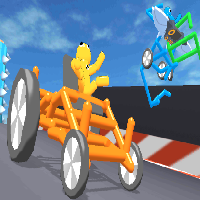
Draw Crash Race is an engaging online title that combines creative drawing mechanics with high‑speed racing action. Players design custom vehicles directly within the browser, then test them on dynamic tracks that feature loops, ramps, and challenging obstacles. The game is hosted on the UBG at School platform, which ensures seamless access from school networks without requiring additional software installations.
Why Draw Crash Race Stands Out
The core appeal of Draw Crash Race lies in its blend of artistic freedom and competitive gameplay. Users can experiment with shapes, colors, and structural details to craft vehicles that reflect personal style while optimizing performance. Each design influences speed, handling, and durability, creating a direct link between creativity and racing success.
Key Features of the Game
- Custom Vehicle Builder: Intuitive drag‑and‑drop interface for assembling chassis, wheels, and decorative elements.
- Dynamic Track Editor: Build personalized courses or select from pre‑designed arenas that vary in difficulty.
- Power‑Up System: Collect boost items, shields, and speed modifiers that can be strategically deployed during races.
- Multiplayer Mode: Challenge friends or join public lobbies to compare lap times and design choices.
- Responsive Controls: Simple keyboard and mouse inputs that work smoothly on both desktop and tablet devices.
Getting Started – Step‑by‑Step Guide
To begin playing Draw Crash Race on the UBG at School website, follow these steps:
- Navigate to the UBG at School portal.
- Locate the “Draw Crash Race” thumbnail under the “Unblocked Games” section.
- Click the thumbnail to launch the game directly in your browser.
- Select “Create New Vehicle” to open the design interface.
- Choose a base model, add structural components, and apply color palettes.
- Test the vehicle on the practice track to fine‑tune balance and speed.
- Enter a race, collect power‑ups, and aim for the highest finish position.
Design Strategies for Optimal Performance
Success in Draw Crash Race often hinges on balancing speed with stability. Players who invest time in understanding physics principles can achieve faster lap times. Consider the following tactics:
- Weight Distribution: Position heavier components toward the rear to improve traction on slippery surfaces.
- Aerodynamic Shape: Streamlined profiles reduce drag, allowing higher top speeds on straight sections.
- Wheel Placement: Wider rear wheels increase grip, while front wheels benefit from a slender design to minimize resistance.
- Power‑Up Timing: Deploy boost items just before steep inclines to overcome momentum loss.
Community and Competitive Scene
The Draw Crash Race community thrives on sharing designs and strategies. Forums on the UBG at School site feature discussion threads where users post screenshots of their creations, exchange tips, and organize tournaments. Seasonal events introduce limited‑time challenges that reward unique vehicle aesthetics with exclusive in‑game titles.
Frequently Asked Questions
What browsers are supported?
The game runs smoothly on Chrome, Edge, Firefox, and Safari, provided the browser allows JavaScript execution.
Can I save my designs?
Yes, you can store vehicle blueprints in your local storage, enabling quick recall for future races.
Is there a leaderboard?
Global and friend‑only leaderboards track fastest completion times and highest scores, fostering healthy competition.
Enhancing Your Experience on UBG at School
UBG at School offers additional tools that complement Draw Crash Race. The platform provides a “Daily Challenge” slot where new track layouts are featured, encouraging players to adapt quickly. Moreover, the site’s mobile‑friendly design ensures that you can enjoy the game during breaks without sacrificing performance.
Tips for New Players
- Start with simple shapes before experimenting with complex aerodynamics.
- Observe how other top racers build their vehicles and adopt effective elements.
- Take advantage of the practice mode to refine handling before entering competitive races.
- Engage with community posts to discover hidden shortcuts and secret power‑up locations.
Conclusion
Draw Crash Race epitomizes the fusion of creativity and competition, delivering an immersive experience that keeps players returning for more. By leveraging the robust infrastructure of UBG at School, enthusiasts can access the game instantly, develop unique vehicle designs, and climb the leaderboards through skillful racing. Whether you are a newcomer eager to explore or a seasoned creator seeking fresh challenges, Draw Crash Race offers endless possibilities for fun and strategic gameplay.
Play Draw Crash Race for free on Unblocked Games at School,
Discover a platform packed with thousands of top-tier games, completely ad-free and simple to enjoy from any location. Get ready for endless fun with our unblocked games—play using your keyboard or just a click!
How to Play Unblocked Games on ubgatschool.gitlab.io
Steps to Play
Playing unblocked games on ubgatschool.gitlab.io is straightforward and designed for quick access, especially in environments like schools where gaming sites might be restricted. Follow these steps to get started:
- Access the Website: Open a web browser (Chrome, Firefox, or Edge work well) and navigate to ubgatschool.gitlab.io. The site is optimized for instant play, so no downloads or installations are needed.
- Browse the Game Library: Once on the homepage, you’ll see a collection of games across various genres like action, adventure, puzzle, sports, or strategy. Scroll through or use any available search or category filters to find a game that interests you.
- Select a Game: Click on a game’s icon or title. The site is designed to load games directly in your browser, often in fullscreen mode for an immersive experience.
- Start Playing: Most games launch immediately without additional setup. Some may have a brief loading screen. If a game offers customizable settings (like graphics or sound), adjust them before starting for the best experience.
- Bypass Restrictions (if needed): If the site is blocked on a school network, try accessing it via a different device or network. Some users report success by using .io or GitLab links, as these are less likely to be flagged by filters.
- Enjoy Ad-Free Gaming: The platform aims to provide an uninterrupted experience, so you can focus on gameplay without pop-ups or ads.
Game Controls
Controls vary by game genre, but below are common setups for popular types of games you’re likely to find on ubgatschool.gitlab.io. Check individual game instructions for specific details, as some titles may use unique configurations.
Action/Platformer Games (e.g., Stickman games, Retro Bowl)
- Arrow Keys or WASD: Move character left, right, up, or jump.
- Spacebar: Attack, shoot, or perform special actions.
- Shift: Sprint or dodge (in some games).
- Mouse Click: Aim or interact with objects (if applicable).
Puzzle/Strategy Games (e.g., 2048, Geometry Dash)
- Arrow Keys: Navigate tiles, pieces, or menus.
- Mouse Click/Drag: Select or move items (common in match-3 or building games).
- Spacebar: Pause or confirm selections.
- Enter: Start or restart the game.
Sports/Racing Games (e.g., Slope Game)
- Arrow Keys or WASD: Steer vehicle or control player movement.
- Spacebar: Accelerate or jump.
- Shift: Brake or boost (in racing titles).
- Mouse: Adjust camera angle or aim (in some sports games).
Multiplayer/Arcade Games (e.g., Slither.io)
- Mouse: Guide character or cursor (especially in .io-style games).
- Left Click: Boost speed or activate abilities.
- Arrow Keys: Alternative movement controls in some titles.
- Spacebar: Pause or trigger special moves.
Tips for Smooth Gameplay
- Check Game Instructions: Many games include a tutorial or control guide on the start screen.
- Adjust Settings: If a game feels laggy, lower graphics settings (if available) to match your device’s capabilities.
- Stay Responsive: Some games, especially action titles, rely on quick reactions, so ensure your keyboard or mouse is functioning well.
- Bookmark the Site: Save ubgatschool.gitlab.io for easy access during breaks.
This setup should help you dive into gaming on ubgatschool.gitlab.io with ease. If you add specific games or control schemes later, consider including a “Controls” section on each game’s page for clarity. Enjoy gaming!
How to Play Unblocked Games on ubgatschool.gitlab.io
Steps to Play
Playing unblocked games on ubgatschool.gitlab.io is straightforward and designed for quick access, especially in environments like schools where gaming sites might be restricted. Follow these steps to get started:
- Access the Website: Open a web browser (Chrome, Firefox, or Edge work well) and navigate to ubgatschool.gitlab.io. The site is optimized for instant play, so no downloads or installations are needed.
- Browse the Game Library: Once on the homepage, you’ll see a collection of games across various genres like action, adventure, puzzle, sports, or strategy. Scroll through or use any available search or category filters to find a game that interests you.
- Select a Game: Click on a game’s icon or title. The site is designed to load games directly in your browser, often in fullscreen mode for an immersive experience.
- Start Playing: Most games launch immediately without additional setup. Some may have a brief loading screen. If a game offers customizable settings (like graphics or sound), adjust them before starting for the best experience.
- Bypass Restrictions (if needed): If the site is blocked on a school network, try accessing it via a different device or network. Some users report success by using .io or GitLab links, as these are less likely to be flagged by filters.
- Enjoy Ad-Free Gaming: The platform aims to provide an uninterrupted experience, so you can focus on gameplay without pop-ups or ads.
Game Controls
Controls vary by game genre, but below are common setups for popular types of games you’re likely to find on ubgatschool.gitlab.io. Check individual game instructions for specific details, as some titles may use unique configurations.
Action/Platformer Games (e.g., Stickman games, Retro Bowl)
- Arrow Keys or WASD: Move character left, right, up, or jump.
- Spacebar: Attack, shoot, or perform special actions.
- Shift: Sprint or dodge (in some games).
- Mouse Click: Aim or interact with objects (if applicable).
Puzzle/Strategy Games (e.g., 2048, Geometry Dash)
- Arrow Keys: Navigate tiles, pieces, or menus.
- Mouse Click/Drag: Select or move items (common in match-3 or building games).
- Spacebar: Pause or confirm selections.
- Enter: Start or restart the game.
Sports/Racing Games (e.g., Slope Game)
- Arrow Keys or WASD: Steer vehicle or control player movement.
- Spacebar: Accelerate or jump.
- Shift: Brake or boost (in racing titles).
- Mouse: Adjust camera angle or aim (in some sports games).
Multiplayer/Arcade Games (e.g., Slither.io)
- Mouse: Guide character or cursor (especially in .io-style games).
- Left Click: Boost speed or activate abilities.
- Arrow Keys: Alternative movement controls in some titles.
- Spacebar: Pause or trigger special moves.
Tips for Smooth Gameplay
- Check Game Instructions: Many games include a tutorial or control guide on the start screen.
- Adjust Settings: If a game feels laggy, lower graphics settings (if available) to match your device’s capabilities.
- Stay Responsive: Some games, especially action titles, rely on quick reactions, so ensure your keyboard or mouse is functioning well.
- Bookmark the Site: Save ubgatschool.gitlab.io for easy access during breaks.
This setup should help you dive into gaming on ubgatschool.gitlab.io with ease. If you add specific games or control schemes later, consider including a “Controls” section on each game’s page for clarity. Enjoy gaming!