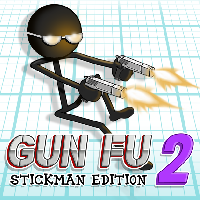
GUN FU STICKMAN 2















SIMILAR GAMES
































Description


Gun Fu Stickman 2 - Unblocked Games at School
About Gun Fu Stickman 2 - Unblocked Games at School
Gun Fu Stickman 2 offers a fast‑paced combat system that blends stick‑figure animation with intense shooting mechanics. Players assume the role of a stick‑man hero who must survive waves of enemies using a variety of firearms, explosives, and close‑range attacks. The game’s simple controls make it accessible for students looking for a quick thrill during breaks, while its escalating difficulty keeps even seasoned gamers engaged.
Within the UBG at School platform, the title is listed under the Unblocked Games section, ensuring that it can be launched directly from school computers without the need for additional downloads or plugins.
Gameplay Overview
The core of Gun Fu Stickman 2 revolves around surviving each level by eliminating all opposing characters before time expires. Each stage introduces new enemy types, ranging from basic foot soldiers to heavily armored bosses that require strategic use of cover and weapon switching. Movement is controlled with arrow keys, while the mouse handles aiming and firing. Players can also perform a dash maneuver to evade attacks, adding a layer of agility to the combat.
Progress is saved automatically after each completed level, allowing users to resume their adventure later without losing accumulated upgrades.
- Multiple weapon categories including pistols, shotguns, rifles, and rocket launchers
- Upgrade system that enhances damage, reload speed, and special abilities
- Hidden bonus items that unlock secret levels and alternate costumes
- Co‑op mode where two players can team up locally using shared keyboards
- Start the level and collect the starter weapon from the central spawn point
- Eliminate the initial wave of enemies to earn basic XP
- Locate hidden crates that contain temporary power‑ups
- Upgrade the primary weapon after reaching the XP threshold
- Confront the boss enemy by exploiting its weak spot
Key Features
Gun Fu Stickman 2 stands out due to its combination of visual simplicity and deep tactical options. The game’s physics engine creates realistic recoil patterns, while the environments are designed with strategic choke points and open arenas to suit different playstyles.
- Dynamic enemy AI that adapts to player tactics
- Rich visual customization with unlockable stick‑man skins
- Replayable levels with randomized enemy spawn points
- Achievement system tracking milestones such as fastest clears and highest combo streaks
Character Abilities
Beyond weapon upgrades, each stick‑man avatar can acquire passive abilities that enhance survivability. These include increased movement speed, reduced damage taken, and a temporary shield that absorbs a set amount of incoming fire. Players can toggle abilities on and off using the hotkey assigned in the configuration menu.
Tips and Strategies
Success in Gun Fu Stickman 2 relies on efficient resource management and situational awareness. Below are proven approaches that help players maximize their performance:
- Maintain constant movement; standing still makes you an easy target
- Prioritize eliminating ranged enemies first, as they pose the greatest threat
- Conserve rocket ammunition for boss encounters, where splash damage can turn the tide
- Utilize the environment by positioning behind walls to block enemy line‑of‑sight
- Collect all hidden crates before confronting the final wave; they often contain essential upgrades
- Save the dash ability for moments when surrounded by multiple foes
- Upgrade reload speed early to reduce downtime between shot cycles
- Switch to a shotgun when facing tightly packed enemy clusters
- Watch enemy visual cues; flashing silhouettes indicate an upcoming special attack
How to Access at School
Accessing Gun Fu Stickman 2 through the UBG at School portal requires only a standard web browser and an active internet connection. Once logged into the platform, navigate to the Unblocked Games section and click the entry titled Gun Fu Stickman 2. The game will load instantly, allowing immediate play without additional configuration.
- No registration is required to start playing
- All controls are keyboard‑and‑mouse compatible, eliminating the need for external peripherals
- The interface automatically adjusts to school‑network firewalls, ensuring uninterrupted access
Community and Competitions
The player base surrounding Gun Fu Stickman 2 is active on various forums linked directly from the Website. Regular contests are held where participants compete for titles such as “Fastest Level Completion” and “Highest Kill‑Streak”. Leaderboards display rankings updated in real time, fostering a competitive yet friendly atmosphere.
- Seasonal events introduce special themed levels with unique reward items
- Community‑created maps are occasionally featured, expanding the gameplay variety
- Discussion threads allow players to share strategies, weapon load‑outs, and custom skin designs
Leaderboards
Current top performers are listed below, showcasing the most skilled players in each category:
- Fastest Completion – Level 1: PlayerX – 0:42 seconds
- Highest Combo Streak: StickMaster – 78 consecutive kills
- Most Rockets Used in Boss Fight: BlastWave – 12 rockets
These records are refreshed daily, encouraging continuous improvement and repeat play.
Play Gun Fu Stickman 2 for free on Unblocked Games at School,
Discover a platform packed with thousands of top-tier games, completely ad-free and simple to enjoy from any location. Get ready for endless fun with our unblocked games—play using your keyboard or just a click!
How to Play Unblocked Games on ubgatschool.gitlab.io
Steps to Play
Playing unblocked games on ubgatschool.gitlab.io is straightforward and designed for quick access, especially in environments like schools where gaming sites might be restricted. Follow these steps to get started:
- Access the Website: Open a web browser (Chrome, Firefox, or Edge work well) and navigate to ubgatschool.gitlab.io. The site is optimized for instant play, so no downloads or installations are needed.
- Browse the Game Library: Once on the homepage, you’ll see a collection of games across various genres like action, adventure, puzzle, sports, or strategy. Scroll through or use any available search or category filters to find a game that interests you.
- Select a Game: Click on a game’s icon or title. The site is designed to load games directly in your browser, often in fullscreen mode for an immersive experience.
- Start Playing: Most games launch immediately without additional setup. Some may have a brief loading screen. If a game offers customizable settings (like graphics or sound), adjust them before starting for the best experience.
- Bypass Restrictions (if needed): If the site is blocked on a school network, try accessing it via a different device or network. Some users report success by using .io or GitLab links, as these are less likely to be flagged by filters.
- Enjoy Ad-Free Gaming: The platform aims to provide an uninterrupted experience, so you can focus on gameplay without pop-ups or ads.
Game Controls
Controls vary by game genre, but below are common setups for popular types of games you’re likely to find on ubgatschool.gitlab.io. Check individual game instructions for specific details, as some titles may use unique configurations.
Action/Platformer Games (e.g., Stickman games, Retro Bowl)
- Arrow Keys or WASD: Move character left, right, up, or jump.
- Spacebar: Attack, shoot, or perform special actions.
- Shift: Sprint or dodge (in some games).
- Mouse Click: Aim or interact with objects (if applicable).
Puzzle/Strategy Games (e.g., 2048, Geometry Dash)
- Arrow Keys: Navigate tiles, pieces, or menus.
- Mouse Click/Drag: Select or move items (common in match-3 or building games).
- Spacebar: Pause or confirm selections.
- Enter: Start or restart the game.
Sports/Racing Games (e.g., Slope Game)
- Arrow Keys or WASD: Steer vehicle or control player movement.
- Spacebar: Accelerate or jump.
- Shift: Brake or boost (in racing titles).
- Mouse: Adjust camera angle or aim (in some sports games).
Multiplayer/Arcade Games (e.g., Slither.io)
- Mouse: Guide character or cursor (especially in .io-style games).
- Left Click: Boost speed or activate abilities.
- Arrow Keys: Alternative movement controls in some titles.
- Spacebar: Pause or trigger special moves.
Tips for Smooth Gameplay
- Check Game Instructions: Many games include a tutorial or control guide on the start screen.
- Adjust Settings: If a game feels laggy, lower graphics settings (if available) to match your device’s capabilities.
- Stay Responsive: Some games, especially action titles, rely on quick reactions, so ensure your keyboard or mouse is functioning well.
- Bookmark the Site: Save ubgatschool.gitlab.io for easy access during breaks.
This setup should help you dive into gaming on ubgatschool.gitlab.io with ease. If you add specific games or control schemes later, consider including a “Controls” section on each game’s page for clarity. Enjoy gaming!
How to Play Unblocked Games on ubgatschool.gitlab.io
Steps to Play
Playing unblocked games on ubgatschool.gitlab.io is straightforward and designed for quick access, especially in environments like schools where gaming sites might be restricted. Follow these steps to get started:
- Access the Website: Open a web browser (Chrome, Firefox, or Edge work well) and navigate to ubgatschool.gitlab.io. The site is optimized for instant play, so no downloads or installations are needed.
- Browse the Game Library: Once on the homepage, you’ll see a collection of games across various genres like action, adventure, puzzle, sports, or strategy. Scroll through or use any available search or category filters to find a game that interests you.
- Select a Game: Click on a game’s icon or title. The site is designed to load games directly in your browser, often in fullscreen mode for an immersive experience.
- Start Playing: Most games launch immediately without additional setup. Some may have a brief loading screen. If a game offers customizable settings (like graphics or sound), adjust them before starting for the best experience.
- Bypass Restrictions (if needed): If the site is blocked on a school network, try accessing it via a different device or network. Some users report success by using .io or GitLab links, as these are less likely to be flagged by filters.
- Enjoy Ad-Free Gaming: The platform aims to provide an uninterrupted experience, so you can focus on gameplay without pop-ups or ads.
Game Controls
Controls vary by game genre, but below are common setups for popular types of games you’re likely to find on ubgatschool.gitlab.io. Check individual game instructions for specific details, as some titles may use unique configurations.
Action/Platformer Games (e.g., Stickman games, Retro Bowl)
- Arrow Keys or WASD: Move character left, right, up, or jump.
- Spacebar: Attack, shoot, or perform special actions.
- Shift: Sprint or dodge (in some games).
- Mouse Click: Aim or interact with objects (if applicable).
Puzzle/Strategy Games (e.g., 2048, Geometry Dash)
- Arrow Keys: Navigate tiles, pieces, or menus.
- Mouse Click/Drag: Select or move items (common in match-3 or building games).
- Spacebar: Pause or confirm selections.
- Enter: Start or restart the game.
Sports/Racing Games (e.g., Slope Game)
- Arrow Keys or WASD: Steer vehicle or control player movement.
- Spacebar: Accelerate or jump.
- Shift: Brake or boost (in racing titles).
- Mouse: Adjust camera angle or aim (in some sports games).
Multiplayer/Arcade Games (e.g., Slither.io)
- Mouse: Guide character or cursor (especially in .io-style games).
- Left Click: Boost speed or activate abilities.
- Arrow Keys: Alternative movement controls in some titles.
- Spacebar: Pause or trigger special moves.
Tips for Smooth Gameplay
- Check Game Instructions: Many games include a tutorial or control guide on the start screen.
- Adjust Settings: If a game feels laggy, lower graphics settings (if available) to match your device’s capabilities.
- Stay Responsive: Some games, especially action titles, rely on quick reactions, so ensure your keyboard or mouse is functioning well.
- Bookmark the Site: Save ubgatschool.gitlab.io for easy access during breaks.
This setup should help you dive into gaming on ubgatschool.gitlab.io with ease. If you add specific games or control schemes later, consider including a “Controls” section on each game’s page for clarity. Enjoy gaming!