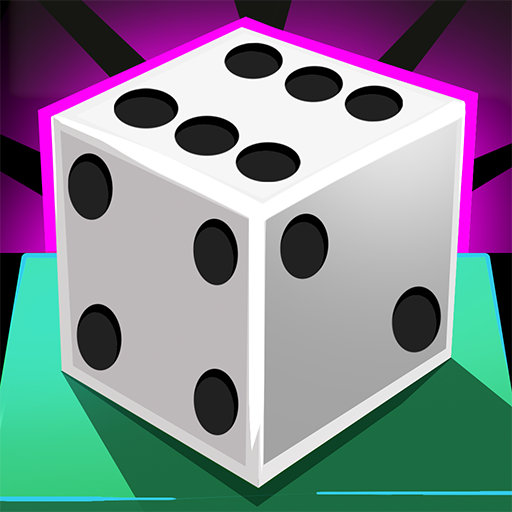
IDLE DICE












SIMILAR GAMES
































Description


Idle Dice - Unblocked Games at School
About Idle Dice - Unblocked Games at School
Idle Dice offers a simple yet addictive experience that blends chance with incremental progression, making it an ideal choice for short breaks between classes. The game centers around rolling virtual dice that generate resources, unlock upgrades, and gradually increase the player’s score. Its design emphasizes ease of access, requiring only a web browser and no additional downloads, which aligns perfectly with the constraints of a school environment.
Core Mechanics
The primary loop involves tapping a button to roll a set of dice, each displaying a different number of sides. Every roll contributes to a cumulative total that can be spent on upgrades such as additional dice, higher‑value faces, or multipliers that boost future rolls. As the player invests in these upgrades, the rate of resource generation accelerates, creating a satisfying sense of exponential growth.
- Dice Variety: Multiple dice types with distinct probability distributions.
- Upgrade System: Spend accumulated points to enhance roll efficiency.
- Progressive Rewards: Earn bonuses at milestone thresholds.
Strategic Depth
Although the interface appears minimal, experienced players develop nuanced strategies to maximize output. Prioritizing upgrades that increase roll frequency before investing in higher‑value dice often yields the greatest long‑term gains. Additionally, timing the use of special events — such as double‑roll periods — can dramatically enhance accumulation rates.
- Focus on Frequency: Early upgrades should target roll speed before value.
- Balance Investments: Allocate resources across different upgrade categories to avoid bottlenecks.
- Event Timing: Activate multipliers when the accumulated total is high to magnify returns.
Educational Benefits
Idle Dice subtly reinforces several skills that are valuable in an academic context. The game encourages basic arithmetic as players calculate expected values, promotes logical planning through resource management, and cultivates patience as they observe gradual progress. These characteristics make it a constructive pastime that can be enjoyed responsibly during recess or free periods.
Community and Competition
While primarily a solo experience, many students share their high scores and strategies on school forums, fostering a sense of friendly competition. Leaderboards within the game provide additional motivation, encouraging players to refine their techniques and strive for higher rankings.
Accessing the Game via UBG at School
To play Idle Dice without installing software, simply navigate to the UBG at School platform. The site hosts a curated collection of unblocked games, including Idle Dice, and provides a seamless entry point directly from the browser.
UBG at SchoolGetting Started
Beginning play is straightforward. Upon loading the game, select the “Start Rolling” button to initiate the first set of dice. Observe the outcome, collect the displayed resources, and navigate to the upgrade menu to enhance your dice set. Repeating this cycle builds momentum, eventually unlocking more advanced features such as prestige resets that restart progress with amplified multipliers.
Common Questions
Is the game safe for school networks? Yes, Idle Dice runs entirely client‑side using standard web technologies, eliminating the need for external servers or plugins.
Can I track my progress? The game includes an internal counter that records total rolls, accumulated points, and current upgrade levels, allowing for personal milestone tracking.
Are there any hidden costs? No monetary transactions are required; all advances are earned through in‑game effort.
Future Updates
The developers behind the UBG at School collection continuously refine the platform, planning to introduce new dice themes, seasonal events, and collaborative challenges that encourage group participation while preserving the core idle mechanics.
Play Idle Dice for free on Unblocked Games at School,
Discover a platform packed with thousands of top-tier games, completely ad-free and simple to enjoy from any location. Get ready for endless fun with our unblocked games—play using your keyboard or just a click!
How to Play Unblocked Games on ubgatschool.gitlab.io
Steps to Play
Playing unblocked games on ubgatschool.gitlab.io is straightforward and designed for quick access, especially in environments like schools where gaming sites might be restricted. Follow these steps to get started:
- Access the Website: Open a web browser (Chrome, Firefox, or Edge work well) and navigate to ubgatschool.gitlab.io. The site is optimized for instant play, so no downloads or installations are needed.
- Browse the Game Library: Once on the homepage, you’ll see a collection of games across various genres like action, adventure, puzzle, sports, or strategy. Scroll through or use any available search or category filters to find a game that interests you.
- Select a Game: Click on a game’s icon or title. The site is designed to load games directly in your browser, often in fullscreen mode for an immersive experience.
- Start Playing: Most games launch immediately without additional setup. Some may have a brief loading screen. If a game offers customizable settings (like graphics or sound), adjust them before starting for the best experience.
- Bypass Restrictions (if needed): If the site is blocked on a school network, try accessing it via a different device or network. Some users report success by using .io or GitLab links, as these are less likely to be flagged by filters.
- Enjoy Ad-Free Gaming: The platform aims to provide an uninterrupted experience, so you can focus on gameplay without pop-ups or ads.
Game Controls
Controls vary by game genre, but below are common setups for popular types of games you’re likely to find on ubgatschool.gitlab.io. Check individual game instructions for specific details, as some titles may use unique configurations.
Action/Platformer Games (e.g., Stickman games, Retro Bowl)
- Arrow Keys or WASD: Move character left, right, up, or jump.
- Spacebar: Attack, shoot, or perform special actions.
- Shift: Sprint or dodge (in some games).
- Mouse Click: Aim or interact with objects (if applicable).
Puzzle/Strategy Games (e.g., 2048, Geometry Dash)
- Arrow Keys: Navigate tiles, pieces, or menus.
- Mouse Click/Drag: Select or move items (common in match-3 or building games).
- Spacebar: Pause or confirm selections.
- Enter: Start or restart the game.
Sports/Racing Games (e.g., Slope Game)
- Arrow Keys or WASD: Steer vehicle or control player movement.
- Spacebar: Accelerate or jump.
- Shift: Brake or boost (in racing titles).
- Mouse: Adjust camera angle or aim (in some sports games).
Multiplayer/Arcade Games (e.g., Slither.io)
- Mouse: Guide character or cursor (especially in .io-style games).
- Left Click: Boost speed or activate abilities.
- Arrow Keys: Alternative movement controls in some titles.
- Spacebar: Pause or trigger special moves.
Tips for Smooth Gameplay
- Check Game Instructions: Many games include a tutorial or control guide on the start screen.
- Adjust Settings: If a game feels laggy, lower graphics settings (if available) to match your device’s capabilities.
- Stay Responsive: Some games, especially action titles, rely on quick reactions, so ensure your keyboard or mouse is functioning well.
- Bookmark the Site: Save ubgatschool.gitlab.io for easy access during breaks.
This setup should help you dive into gaming on ubgatschool.gitlab.io with ease. If you add specific games or control schemes later, consider including a “Controls” section on each game’s page for clarity. Enjoy gaming!
How to Play Unblocked Games on ubgatschool.gitlab.io
Steps to Play
Playing unblocked games on ubgatschool.gitlab.io is straightforward and designed for quick access, especially in environments like schools where gaming sites might be restricted. Follow these steps to get started:
- Access the Website: Open a web browser (Chrome, Firefox, or Edge work well) and navigate to ubgatschool.gitlab.io. The site is optimized for instant play, so no downloads or installations are needed.
- Browse the Game Library: Once on the homepage, you’ll see a collection of games across various genres like action, adventure, puzzle, sports, or strategy. Scroll through or use any available search or category filters to find a game that interests you.
- Select a Game: Click on a game’s icon or title. The site is designed to load games directly in your browser, often in fullscreen mode for an immersive experience.
- Start Playing: Most games launch immediately without additional setup. Some may have a brief loading screen. If a game offers customizable settings (like graphics or sound), adjust them before starting for the best experience.
- Bypass Restrictions (if needed): If the site is blocked on a school network, try accessing it via a different device or network. Some users report success by using .io or GitLab links, as these are less likely to be flagged by filters.
- Enjoy Ad-Free Gaming: The platform aims to provide an uninterrupted experience, so you can focus on gameplay without pop-ups or ads.
Game Controls
Controls vary by game genre, but below are common setups for popular types of games you’re likely to find on ubgatschool.gitlab.io. Check individual game instructions for specific details, as some titles may use unique configurations.
Action/Platformer Games (e.g., Stickman games, Retro Bowl)
- Arrow Keys or WASD: Move character left, right, up, or jump.
- Spacebar: Attack, shoot, or perform special actions.
- Shift: Sprint or dodge (in some games).
- Mouse Click: Aim or interact with objects (if applicable).
Puzzle/Strategy Games (e.g., 2048, Geometry Dash)
- Arrow Keys: Navigate tiles, pieces, or menus.
- Mouse Click/Drag: Select or move items (common in match-3 or building games).
- Spacebar: Pause or confirm selections.
- Enter: Start or restart the game.
Sports/Racing Games (e.g., Slope Game)
- Arrow Keys or WASD: Steer vehicle or control player movement.
- Spacebar: Accelerate or jump.
- Shift: Brake or boost (in racing titles).
- Mouse: Adjust camera angle or aim (in some sports games).
Multiplayer/Arcade Games (e.g., Slither.io)
- Mouse: Guide character or cursor (especially in .io-style games).
- Left Click: Boost speed or activate abilities.
- Arrow Keys: Alternative movement controls in some titles.
- Spacebar: Pause or trigger special moves.
Tips for Smooth Gameplay
- Check Game Instructions: Many games include a tutorial or control guide on the start screen.
- Adjust Settings: If a game feels laggy, lower graphics settings (if available) to match your device’s capabilities.
- Stay Responsive: Some games, especially action titles, rely on quick reactions, so ensure your keyboard or mouse is functioning well.
- Bookmark the Site: Save ubgatschool.gitlab.io for easy access during breaks.
This setup should help you dive into gaming on ubgatschool.gitlab.io with ease. If you add specific games or control schemes later, consider including a “Controls” section on each game’s page for clarity. Enjoy gaming!