KART WARS















SIMILAR GAMES
































Description


Kart Wars - Unblocked Games at School
About Kart Wars - Unblocked Games at School
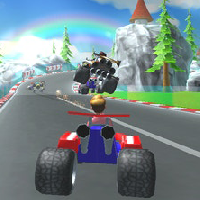
Kart Wars offers an exciting blend of racing and combat that appeals to students seeking fast-paced unblocked games during breaks. The platform hosts a variety of kart-based challenges where players customize vehicles, select unique weapons, and compete in dynamic arenas. Each match lasts only a few minutes, making it ideal for short school intervals while still delivering a competitive edge.
Gameplay Mechanics
Players control a cart equipped with boosters and defensive items. The core objective is to outmaneuver opponents, collect power-ups, and eliminate rivals using strategic attacks. The control scheme is simple: arrow keys for movement, SPACE for jumping, and CTRL for firing special weapons. Mastery requires timing, spatial awareness, and quick decision-making.
Customization Options
Each kart can be upgraded with distinct attributes such as speed, armor, and handling. Players unlock new parts through successful matches, allowing them to tailor their vehicle to a preferred playstyle. This progression system encourages repeated engagement and skill development.
Multiplayer Features
Kart Wars supports both solo and team-based modes. In team mode, players coordinate attacks, share resources, and execute combined strategies to dominate the leaderboard. The matchmaking algorithm pairs participants of similar skill levels, ensuring balanced and enjoyable competition.
Accessibility and Unblocked Status
The game runs directly in a web browser, requiring no downloads or installations. Because it is hosted on the UBG at School platform, it bypasses typical school network restrictions, allowing students to launch the game from any computer within the campus network.
Strategic Tips
To excel in Kart Wars, consider the following strategies:
- Prioritize speed upgrades early to outrun opponents on open tracks.
- Save defensive items for critical moments when under attack.
- Use boost zones strategically to gain a lead without exhausting fuel.
- Maintain awareness of the map layout to anticipate shortcuts and ambush points.
Community and Leaderboards
Kart Wars features a live leaderboard that records wins, fastest lap times, and highest kill counts. Players can view their ranking among peers and strive to improve their position through consistent performance. Seasonal events introduce special challenges and exclusive rewards, fostering a vibrant competitive community.
Visual and Audio Design
The game employs vibrant graphics with smooth animations that enhance the overall experience. Sound effects accompany each boost, weapon discharge, and collision, providing auditory feedback that reinforces gameplay actions. The visual style is optimized for low-end devices, ensuring accessibility across a wide range of hardware.
Future Updates and Developments
Developers regularly release patches that introduce new karts, maps, and game modes. Upcoming features include seasonal themed events, additional weapon types, and enhanced multiplayer matchmaking. Staying informed about these updates ensures players can adapt to evolving gameplay dynamics.
Engage with Kart Wars today and experience the thrill of unblocked racing action within the school environment. Join countless students who have already embraced this addictive unblocked game and test your skills against a growing community of competitors.
Play Kart Wars for free on Unblocked Games at School,
Discover a platform packed with thousands of top-tier games, completely ad-free and simple to enjoy from any location. Get ready for endless fun with our unblocked games—play using your keyboard or just a click!
How to Play Unblocked Games on ubgatschool.gitlab.io
Steps to Play
Playing unblocked games on ubgatschool.gitlab.io is straightforward and designed for quick access, especially in environments like schools where gaming sites might be restricted. Follow these steps to get started:
- Access the Website: Open a web browser (Chrome, Firefox, or Edge work well) and navigate to ubgatschool.gitlab.io. The site is optimized for instant play, so no downloads or installations are needed.
- Browse the Game Library: Once on the homepage, you’ll see a collection of games across various genres like action, adventure, puzzle, sports, or strategy. Scroll through or use any available search or category filters to find a game that interests you.
- Select a Game: Click on a game’s icon or title. The site is designed to load games directly in your browser, often in fullscreen mode for an immersive experience.
- Start Playing: Most games launch immediately without additional setup. Some may have a brief loading screen. If a game offers customizable settings (like graphics or sound), adjust them before starting for the best experience.
- Bypass Restrictions (if needed): If the site is blocked on a school network, try accessing it via a different device or network. Some users report success by using .io or GitLab links, as these are less likely to be flagged by filters.
- Enjoy Ad-Free Gaming: The platform aims to provide an uninterrupted experience, so you can focus on gameplay without pop-ups or ads.
Game Controls
Controls vary by game genre, but below are common setups for popular types of games you’re likely to find on ubgatschool.gitlab.io. Check individual game instructions for specific details, as some titles may use unique configurations.
Action/Platformer Games (e.g., Stickman games, Retro Bowl)
- Arrow Keys or WASD: Move character left, right, up, or jump.
- Spacebar: Attack, shoot, or perform special actions.
- Shift: Sprint or dodge (in some games).
- Mouse Click: Aim or interact with objects (if applicable).
Puzzle/Strategy Games (e.g., 2048, Geometry Dash)
- Arrow Keys: Navigate tiles, pieces, or menus.
- Mouse Click/Drag: Select or move items (common in match-3 or building games).
- Spacebar: Pause or confirm selections.
- Enter: Start or restart the game.
Sports/Racing Games (e.g., Slope Game)
- Arrow Keys or WASD: Steer vehicle or control player movement.
- Spacebar: Accelerate or jump.
- Shift: Brake or boost (in racing titles).
- Mouse: Adjust camera angle or aim (in some sports games).
Multiplayer/Arcade Games (e.g., Slither.io)
- Mouse: Guide character or cursor (especially in .io-style games).
- Left Click: Boost speed or activate abilities.
- Arrow Keys: Alternative movement controls in some titles.
- Spacebar: Pause or trigger special moves.
Tips for Smooth Gameplay
- Check Game Instructions: Many games include a tutorial or control guide on the start screen.
- Adjust Settings: If a game feels laggy, lower graphics settings (if available) to match your device’s capabilities.
- Stay Responsive: Some games, especially action titles, rely on quick reactions, so ensure your keyboard or mouse is functioning well.
- Bookmark the Site: Save ubgatschool.gitlab.io for easy access during breaks.
This setup should help you dive into gaming on ubgatschool.gitlab.io with ease. If you add specific games or control schemes later, consider including a “Controls” section on each game’s page for clarity. Enjoy gaming!
How to Play Unblocked Games on ubgatschool.gitlab.io
Steps to Play
Playing unblocked games on ubgatschool.gitlab.io is straightforward and designed for quick access, especially in environments like schools where gaming sites might be restricted. Follow these steps to get started:
- Access the Website: Open a web browser (Chrome, Firefox, or Edge work well) and navigate to ubgatschool.gitlab.io. The site is optimized for instant play, so no downloads or installations are needed.
- Browse the Game Library: Once on the homepage, you’ll see a collection of games across various genres like action, adventure, puzzle, sports, or strategy. Scroll through or use any available search or category filters to find a game that interests you.
- Select a Game: Click on a game’s icon or title. The site is designed to load games directly in your browser, often in fullscreen mode for an immersive experience.
- Start Playing: Most games launch immediately without additional setup. Some may have a brief loading screen. If a game offers customizable settings (like graphics or sound), adjust them before starting for the best experience.
- Bypass Restrictions (if needed): If the site is blocked on a school network, try accessing it via a different device or network. Some users report success by using .io or GitLab links, as these are less likely to be flagged by filters.
- Enjoy Ad-Free Gaming: The platform aims to provide an uninterrupted experience, so you can focus on gameplay without pop-ups or ads.
Game Controls
Controls vary by game genre, but below are common setups for popular types of games you’re likely to find on ubgatschool.gitlab.io. Check individual game instructions for specific details, as some titles may use unique configurations.
Action/Platformer Games (e.g., Stickman games, Retro Bowl)
- Arrow Keys or WASD: Move character left, right, up, or jump.
- Spacebar: Attack, shoot, or perform special actions.
- Shift: Sprint or dodge (in some games).
- Mouse Click: Aim or interact with objects (if applicable).
Puzzle/Strategy Games (e.g., 2048, Geometry Dash)
- Arrow Keys: Navigate tiles, pieces, or menus.
- Mouse Click/Drag: Select or move items (common in match-3 or building games).
- Spacebar: Pause or confirm selections.
- Enter: Start or restart the game.
Sports/Racing Games (e.g., Slope Game)
- Arrow Keys or WASD: Steer vehicle or control player movement.
- Spacebar: Accelerate or jump.
- Shift: Brake or boost (in racing titles).
- Mouse: Adjust camera angle or aim (in some sports games).
Multiplayer/Arcade Games (e.g., Slither.io)
- Mouse: Guide character or cursor (especially in .io-style games).
- Left Click: Boost speed or activate abilities.
- Arrow Keys: Alternative movement controls in some titles.
- Spacebar: Pause or trigger special moves.
Tips for Smooth Gameplay
- Check Game Instructions: Many games include a tutorial or control guide on the start screen.
- Adjust Settings: If a game feels laggy, lower graphics settings (if available) to match your device’s capabilities.
- Stay Responsive: Some games, especially action titles, rely on quick reactions, so ensure your keyboard or mouse is functioning well.
- Bookmark the Site: Save ubgatschool.gitlab.io for easy access during breaks.
This setup should help you dive into gaming on ubgatschool.gitlab.io with ease. If you add specific games or control schemes later, consider including a “Controls” section on each game’s page for clarity. Enjoy gaming!