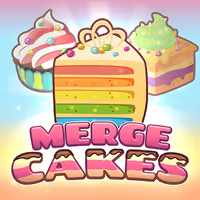
MERGE CAKES











SIMILAR GAMES
































Description


Merge Cakes - Unblocked Games at School
About Merge Cakes - Unblocked Games at School
We present a comprehensive guide to Merge Cakes, an engaging puzzle title hosted on the UBG at School platform. The game challenges students to combine identical pastries, create larger desserts, and achieve high scores while navigating typical school network restrictions. Our detailed overview covers essential aspects that influence accessibility, gameplay depth, and community interaction, ensuring readers receive a complete understanding of the experience.
Game Overview
Merge Cakes features a simple yet addictive mechanic where players drag and drop matching cakes to merge them into higher‑tier treats. Each successful merge generates additional points and unlocks new cake varieties, encouraging strategic planning and quick decision‑making. The visual design incorporates bright colors and smooth animations that appeal to a younger audience, while the soundtrack provides a light, non‑distracting backdrop suitable for classroom environments.
Core Mechanics
The primary controls involve using a mouse or touch interface to select a cake, drag it onto an identical counterpart, and release to create a merged object. Merged cakes increase in size and value, and certain combos trigger bonus multipliers that boost the final score. Progress is measured by a cumulative score board that updates in real time, allowing players to track their achievements without leaving the game screen.
How to Access Merge Cakes on School Networks
Accessing Merge Cakes from school computers requires a few straightforward steps that bypass common restrictive filters. By following the instructions below, students can launch the game directly through the approved UBG at School portal.
Browser Requirements
We recommend using a modern browser such as Chrome, Firefox, or Edge, all of which support HTML5 canvas rendering essential for smooth animation. Ensure that JavaScript is enabled, as the game relies on script execution for interaction. Clearing cached data before each session helps prevent outdated versions from interfering with gameplay.
Tips and Strategies for Winning Merge Cakes
Success in Merge Cakes depends on thoughtful planning and efficient resource management. Below we outline proven techniques that maximize score output.
- Prioritize Chain Reactions – Align merges so that one successful combination triggers additional matches without manual input.
- Control Board Space – Keep the grid uncluttered by merging smaller cakes early, which creates room for larger combos later.
- Target High‑Value Cakes – Focus on merging rare cake types that offer exponential point gains when combined.
- Use Bonuses Wisely – Activate time‑limited bonuses when the board is near capacity to prevent loss of potential merges.
Advanced Merging Techniques
Experienced players can employ advanced strategies to dominate the leaderboard. These include:
- Setting up combo chains that propagate across multiple rows or columns.
- Exploiting special cake types that appear randomly and provide multiplier effects when merged.
- Planning several moves ahead, visualizing the board layout to anticipate future merges.
Community and Updates
Regular updates from the UBG at School development team introduce new cake varieties, seasonal events, and performance enhancements. Engaging with the community through forums and chat channels allows players to share strategies, report bugs, and stay informed about upcoming features.
Future Roadmap
Upcoming releases promise additional merging mechanics, collaborative multiplayer modes, and customizable avatar options. Anticipated improvements include faster load times, enhanced mobile compatibility, and deeper integration with educational tools to support classroom learning objectives.
Play Merge Cakes for free on Unblocked Games at School,
Discover a platform packed with thousands of top-tier games, completely ad-free and simple to enjoy from any location. Get ready for endless fun with our unblocked games—play using your keyboard or just a click!
How to Play Unblocked Games on ubgatschool.gitlab.io
Steps to Play
Playing unblocked games on ubgatschool.gitlab.io is straightforward and designed for quick access, especially in environments like schools where gaming sites might be restricted. Follow these steps to get started:
- Access the Website: Open a web browser (Chrome, Firefox, or Edge work well) and navigate to ubgatschool.gitlab.io. The site is optimized for instant play, so no downloads or installations are needed.
- Browse the Game Library: Once on the homepage, you’ll see a collection of games across various genres like action, adventure, puzzle, sports, or strategy. Scroll through or use any available search or category filters to find a game that interests you.
- Select a Game: Click on a game’s icon or title. The site is designed to load games directly in your browser, often in fullscreen mode for an immersive experience.
- Start Playing: Most games launch immediately without additional setup. Some may have a brief loading screen. If a game offers customizable settings (like graphics or sound), adjust them before starting for the best experience.
- Bypass Restrictions (if needed): If the site is blocked on a school network, try accessing it via a different device or network. Some users report success by using .io or GitLab links, as these are less likely to be flagged by filters.
- Enjoy Ad-Free Gaming: The platform aims to provide an uninterrupted experience, so you can focus on gameplay without pop-ups or ads.
Game Controls
Controls vary by game genre, but below are common setups for popular types of games you’re likely to find on ubgatschool.gitlab.io. Check individual game instructions for specific details, as some titles may use unique configurations.
Action/Platformer Games (e.g., Stickman games, Retro Bowl)
- Arrow Keys or WASD: Move character left, right, up, or jump.
- Spacebar: Attack, shoot, or perform special actions.
- Shift: Sprint or dodge (in some games).
- Mouse Click: Aim or interact with objects (if applicable).
Puzzle/Strategy Games (e.g., 2048, Geometry Dash)
- Arrow Keys: Navigate tiles, pieces, or menus.
- Mouse Click/Drag: Select or move items (common in match-3 or building games).
- Spacebar: Pause or confirm selections.
- Enter: Start or restart the game.
Sports/Racing Games (e.g., Slope Game)
- Arrow Keys or WASD: Steer vehicle or control player movement.
- Spacebar: Accelerate or jump.
- Shift: Brake or boost (in racing titles).
- Mouse: Adjust camera angle or aim (in some sports games).
Multiplayer/Arcade Games (e.g., Slither.io)
- Mouse: Guide character or cursor (especially in .io-style games).
- Left Click: Boost speed or activate abilities.
- Arrow Keys: Alternative movement controls in some titles.
- Spacebar: Pause or trigger special moves.
Tips for Smooth Gameplay
- Check Game Instructions: Many games include a tutorial or control guide on the start screen.
- Adjust Settings: If a game feels laggy, lower graphics settings (if available) to match your device’s capabilities.
- Stay Responsive: Some games, especially action titles, rely on quick reactions, so ensure your keyboard or mouse is functioning well.
- Bookmark the Site: Save ubgatschool.gitlab.io for easy access during breaks.
This setup should help you dive into gaming on ubgatschool.gitlab.io with ease. If you add specific games or control schemes later, consider including a “Controls” section on each game’s page for clarity. Enjoy gaming!
How to Play Unblocked Games on ubgatschool.gitlab.io
Steps to Play
Playing unblocked games on ubgatschool.gitlab.io is straightforward and designed for quick access, especially in environments like schools where gaming sites might be restricted. Follow these steps to get started:
- Access the Website: Open a web browser (Chrome, Firefox, or Edge work well) and navigate to ubgatschool.gitlab.io. The site is optimized for instant play, so no downloads or installations are needed.
- Browse the Game Library: Once on the homepage, you’ll see a collection of games across various genres like action, adventure, puzzle, sports, or strategy. Scroll through or use any available search or category filters to find a game that interests you.
- Select a Game: Click on a game’s icon or title. The site is designed to load games directly in your browser, often in fullscreen mode for an immersive experience.
- Start Playing: Most games launch immediately without additional setup. Some may have a brief loading screen. If a game offers customizable settings (like graphics or sound), adjust them before starting for the best experience.
- Bypass Restrictions (if needed): If the site is blocked on a school network, try accessing it via a different device or network. Some users report success by using .io or GitLab links, as these are less likely to be flagged by filters.
- Enjoy Ad-Free Gaming: The platform aims to provide an uninterrupted experience, so you can focus on gameplay without pop-ups or ads.
Game Controls
Controls vary by game genre, but below are common setups for popular types of games you’re likely to find on ubgatschool.gitlab.io. Check individual game instructions for specific details, as some titles may use unique configurations.
Action/Platformer Games (e.g., Stickman games, Retro Bowl)
- Arrow Keys or WASD: Move character left, right, up, or jump.
- Spacebar: Attack, shoot, or perform special actions.
- Shift: Sprint or dodge (in some games).
- Mouse Click: Aim or interact with objects (if applicable).
Puzzle/Strategy Games (e.g., 2048, Geometry Dash)
- Arrow Keys: Navigate tiles, pieces, or menus.
- Mouse Click/Drag: Select or move items (common in match-3 or building games).
- Spacebar: Pause or confirm selections.
- Enter: Start or restart the game.
Sports/Racing Games (e.g., Slope Game)
- Arrow Keys or WASD: Steer vehicle or control player movement.
- Spacebar: Accelerate or jump.
- Shift: Brake or boost (in racing titles).
- Mouse: Adjust camera angle or aim (in some sports games).
Multiplayer/Arcade Games (e.g., Slither.io)
- Mouse: Guide character or cursor (especially in .io-style games).
- Left Click: Boost speed or activate abilities.
- Arrow Keys: Alternative movement controls in some titles.
- Spacebar: Pause or trigger special moves.
Tips for Smooth Gameplay
- Check Game Instructions: Many games include a tutorial or control guide on the start screen.
- Adjust Settings: If a game feels laggy, lower graphics settings (if available) to match your device’s capabilities.
- Stay Responsive: Some games, especially action titles, rely on quick reactions, so ensure your keyboard or mouse is functioning well.
- Bookmark the Site: Save ubgatschool.gitlab.io for easy access during breaks.
This setup should help you dive into gaming on ubgatschool.gitlab.io with ease. If you add specific games or control schemes later, consider including a “Controls” section on each game’s page for clarity. Enjoy gaming!