QUEEN BEE















SIMILAR GAMES
































Description


Queen Bee - Unblocked Games at School
About Queen Bee - Unblocked Games at School
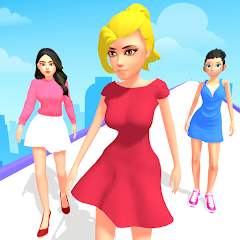
Queen Bee offers a vibrant arcade experience that can be accessed directly from the UBG at School platform without any registration barriers. The game places players in a colorful hive where they control a small bee tasked with collecting pollen, avoiding obstacles, and unlocking new stages as progress continues. Its simple controls and bright visuals make it ideal for quick sessions during short breaks between classes.
Gameplay Mechanics
The core mechanics of Queen Bee revolve around movement, collection, and avoidance. Players use arrow keys or on‑screen buttons to navigate the bee across a scrolling field filled with flowers, honeycombs, and occasional predators. Each collected pollen particle adds to a score meter, and when the meter reaches a predefined threshold, a new level unlocks. Obstacles such as spider webs, gusts of wind, and moving barriers increase in frequency as the player advances, demanding sharper reflexes and strategic positioning.
Visual and Audio Design
Artistically, Queen Bee embraces a cartoonish aesthetic with bold outlines and saturated colors that stand out on school computer screens. The background features animated blossoms that sway gently, while particle effects highlight pollen collection. Sound design includes a light, upbeat soundtrack composed of chiptune motifs combined with buzzing bee effects that reinforce the thematic immersion. Each level introduces subtle variations in palette and background scenery, keeping the visual experience fresh.
Progression and Achievements
Progression in Queen Bee is measured through a tiered level system that rewards players with new bee skins, pollen powers, and decorative hive upgrades. Achievements are tracked on a local leaderboard that persists across sessions, encouraging repeated play to climb the ranks. Special events, such as seasonal flower festivals, introduce limited‑time challenges that grant exclusive items when completed.
How to Access and Play
To play Queen Bee, simply navigate to the UBG at School website, locate the game icon under the “Unblocked Games” section, and click to launch. No downloads, plugins, or external accounts are required; the game runs directly in the browser using HTML5 canvas technology. For optimal performance, ensure that the browser allows pop‑ups and that JavaScript is enabled.
Tips and Strategies
Mastering Queen Bee involves a combination of timing, awareness, and resource management. Consider the following key strategies:
- Plan Your Route: Before diving into a new stage, observe the pattern of moving obstacles and map out a safe corridor.
- Collect Bonus Pollen: Certain flowers emit extra pollen particles; prioritize these to boost score faster.
- Use Power‑Ups Wisely: Occasionally a temporary shield or speed boost appears; activate it when surrounded by dense obstacle clusters.
- Maintain Consistent Momentum: Sudden stops can make you vulnerable; keep a steady pace to react smoothly to emerging threats.
Educational Benefits
While primarily an entertainment title, Queen Bee subtly reinforces several cognitive skills. The game encourages spatial reasoning as players predict bee trajectories, enhances quick decision‑making under time pressure, and promotes pattern recognition when analyzing obstacle cycles. Teachers may find the game useful for short classroom activities that require brief bursts of focused attention.
Community and Support
The UBG at School platform hosts a modest but active community of players who share high scores, strategies, and custom modifications on dedicated forums. Support for Queen Bee includes regular updates that address bug fixes, add new levels, and occasionally introduce themed events tied to holidays or school celebrations.
Updates and Future Development
Developers behind Queen Bee have announced a roadmap that includes expanding the level count, introducing multiplayer modes, and integrating educational mini‑games that complement the main experience. Upcoming patches aim to refine collision detection, improve mobile responsiveness, and add customizable control schemes for diverse classroom devices.
Frequently Asked Questions
Q: Is Queen Bee suitable for all age groups? A: Yes, the game’s difficulty scales gradually, making it accessible for younger students while still offering challenges for older players.
Q: Can I save my progress? A: Progress is stored locally in the browser; refreshing the page will retain your current level and score.
Q: Are there any in‑game purchases? A: No, Queen Bee is completely free and does not feature microtransactions.
Conclusion
Queen Bee stands out as an engaging, easily accessible title within the collection of unblocked games available on the UBG at School site. Its blend of simple controls, appealing visuals, and progressive challenge structure provides an enjoyable pastime that also supports cognitive development. Whether used for a quick break or as part of a broader classroom activity, Queen Bee delivers a satisfying experience that keeps players returning for more buzzing adventures.
Play Queen Bee for free on Unblocked Games at School,
Discover a platform packed with thousands of top-tier games, completely ad-free and simple to enjoy from any location. Get ready for endless fun with our unblocked games—play using your keyboard or just a click!
How to Play Unblocked Games on ubgatschool.gitlab.io
Steps to Play
Playing unblocked games on ubgatschool.gitlab.io is straightforward and designed for quick access, especially in environments like schools where gaming sites might be restricted. Follow these steps to get started:
- Access the Website: Open a web browser (Chrome, Firefox, or Edge work well) and navigate to ubgatschool.gitlab.io. The site is optimized for instant play, so no downloads or installations are needed.
- Browse the Game Library: Once on the homepage, you’ll see a collection of games across various genres like action, adventure, puzzle, sports, or strategy. Scroll through or use any available search or category filters to find a game that interests you.
- Select a Game: Click on a game’s icon or title. The site is designed to load games directly in your browser, often in fullscreen mode for an immersive experience.
- Start Playing: Most games launch immediately without additional setup. Some may have a brief loading screen. If a game offers customizable settings (like graphics or sound), adjust them before starting for the best experience.
- Bypass Restrictions (if needed): If the site is blocked on a school network, try accessing it via a different device or network. Some users report success by using .io or GitLab links, as these are less likely to be flagged by filters.
- Enjoy Ad-Free Gaming: The platform aims to provide an uninterrupted experience, so you can focus on gameplay without pop-ups or ads.
Game Controls
Controls vary by game genre, but below are common setups for popular types of games you’re likely to find on ubgatschool.gitlab.io. Check individual game instructions for specific details, as some titles may use unique configurations.
Action/Platformer Games (e.g., Stickman games, Retro Bowl)
- Arrow Keys or WASD: Move character left, right, up, or jump.
- Spacebar: Attack, shoot, or perform special actions.
- Shift: Sprint or dodge (in some games).
- Mouse Click: Aim or interact with objects (if applicable).
Puzzle/Strategy Games (e.g., 2048, Geometry Dash)
- Arrow Keys: Navigate tiles, pieces, or menus.
- Mouse Click/Drag: Select or move items (common in match-3 or building games).
- Spacebar: Pause or confirm selections.
- Enter: Start or restart the game.
Sports/Racing Games (e.g., Slope Game)
- Arrow Keys or WASD: Steer vehicle or control player movement.
- Spacebar: Accelerate or jump.
- Shift: Brake or boost (in racing titles).
- Mouse: Adjust camera angle or aim (in some sports games).
Multiplayer/Arcade Games (e.g., Slither.io)
- Mouse: Guide character or cursor (especially in .io-style games).
- Left Click: Boost speed or activate abilities.
- Arrow Keys: Alternative movement controls in some titles.
- Spacebar: Pause or trigger special moves.
Tips for Smooth Gameplay
- Check Game Instructions: Many games include a tutorial or control guide on the start screen.
- Adjust Settings: If a game feels laggy, lower graphics settings (if available) to match your device’s capabilities.
- Stay Responsive: Some games, especially action titles, rely on quick reactions, so ensure your keyboard or mouse is functioning well.
- Bookmark the Site: Save ubgatschool.gitlab.io for easy access during breaks.
This setup should help you dive into gaming on ubgatschool.gitlab.io with ease. If you add specific games or control schemes later, consider including a “Controls” section on each game’s page for clarity. Enjoy gaming!
How to Play Unblocked Games on ubgatschool.gitlab.io
Steps to Play
Playing unblocked games on ubgatschool.gitlab.io is straightforward and designed for quick access, especially in environments like schools where gaming sites might be restricted. Follow these steps to get started:
- Access the Website: Open a web browser (Chrome, Firefox, or Edge work well) and navigate to ubgatschool.gitlab.io. The site is optimized for instant play, so no downloads or installations are needed.
- Browse the Game Library: Once on the homepage, you’ll see a collection of games across various genres like action, adventure, puzzle, sports, or strategy. Scroll through or use any available search or category filters to find a game that interests you.
- Select a Game: Click on a game’s icon or title. The site is designed to load games directly in your browser, often in fullscreen mode for an immersive experience.
- Start Playing: Most games launch immediately without additional setup. Some may have a brief loading screen. If a game offers customizable settings (like graphics or sound), adjust them before starting for the best experience.
- Bypass Restrictions (if needed): If the site is blocked on a school network, try accessing it via a different device or network. Some users report success by using .io or GitLab links, as these are less likely to be flagged by filters.
- Enjoy Ad-Free Gaming: The platform aims to provide an uninterrupted experience, so you can focus on gameplay without pop-ups or ads.
Game Controls
Controls vary by game genre, but below are common setups for popular types of games you’re likely to find on ubgatschool.gitlab.io. Check individual game instructions for specific details, as some titles may use unique configurations.
Action/Platformer Games (e.g., Stickman games, Retro Bowl)
- Arrow Keys or WASD: Move character left, right, up, or jump.
- Spacebar: Attack, shoot, or perform special actions.
- Shift: Sprint or dodge (in some games).
- Mouse Click: Aim or interact with objects (if applicable).
Puzzle/Strategy Games (e.g., 2048, Geometry Dash)
- Arrow Keys: Navigate tiles, pieces, or menus.
- Mouse Click/Drag: Select or move items (common in match-3 or building games).
- Spacebar: Pause or confirm selections.
- Enter: Start or restart the game.
Sports/Racing Games (e.g., Slope Game)
- Arrow Keys or WASD: Steer vehicle or control player movement.
- Spacebar: Accelerate or jump.
- Shift: Brake or boost (in racing titles).
- Mouse: Adjust camera angle or aim (in some sports games).
Multiplayer/Arcade Games (e.g., Slither.io)
- Mouse: Guide character or cursor (especially in .io-style games).
- Left Click: Boost speed or activate abilities.
- Arrow Keys: Alternative movement controls in some titles.
- Spacebar: Pause or trigger special moves.
Tips for Smooth Gameplay
- Check Game Instructions: Many games include a tutorial or control guide on the start screen.
- Adjust Settings: If a game feels laggy, lower graphics settings (if available) to match your device’s capabilities.
- Stay Responsive: Some games, especially action titles, rely on quick reactions, so ensure your keyboard or mouse is functioning well.
- Bookmark the Site: Save ubgatschool.gitlab.io for easy access during breaks.
This setup should help you dive into gaming on ubgatschool.gitlab.io with ease. If you add specific games or control schemes later, consider including a “Controls” section on each game’s page for clarity. Enjoy gaming!