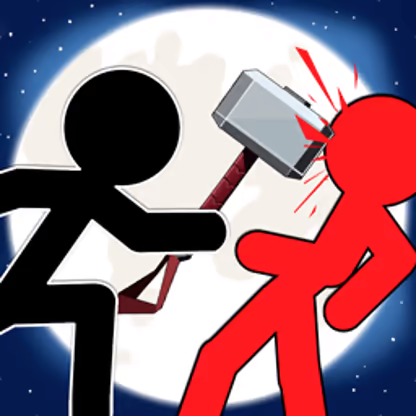
STICKMAN FIGHTER 2















SIMILAR GAMES
































Description


Stickman Fighter 2 - Unblocked Games at School
About Stickman Fighter 2 - Unblocked Games at School
Stickman Fighter 2 delivers an engaging side‑scrolling combat experience that can be accessed directly from the UBG at School portal. The game combines simple visual design with deep mechanical variety, allowing players of all skill levels to enjoy quick matches or extended gaming sessions. This version is hosted in an environment that bypasses typical network restrictions, making it suitable for classroom breaks, after‑school gatherings, or any moment when a brief diversion is welcome.
Why Choose Stickman Fighter 2
The title stands out for several reasons:
- Instant Play – No download or registration is required; the game loads directly in the browser.
- Variety of Characters – Choose from multiple stickman avatars each equipped with distinct move sets.
- Dynamic Combat – Execute combos, blocks, and special attacks that respond to player timing.
- Progressive Difficulty – Enemies increase in strength and complexity as levels advance.
- Free Access – All content remains available without monetary cost.
How to Access the Game
To start playing, navigate to the official site and locate the entry for Stickman Fighter 2. The page provides a clear button that initiates the game within the browser. The link used is https://ubgatschool.gitlab.io/, ensuring that visitors reach the correct hosting location.
Game Mechanics
The combat system relies on a blend of basic attacks and more advanced techniques. Players can perform light punches, heavy strikes, and jumping attacks using a straightforward control layout.
Basic Controls
- Arrow keys move the character left and right.
- Z key executes a light attack.
- X key triggers a heavy attack.
- Spacebar initiates a jump.
- Shift key activates a special move when combined with directional input.
Combo Execution
By chaining light and heavy attacks in specific sequences, players can unleash combos that deal increased damage. The timing window for each link is indicated on-screen, allowing newcomers to practice and master the rhythm.
Strategic Tips
Success in Stickman Fighter 2 often depends on understanding enemy patterns and adapting tactics accordingly.
- Observe Patterns – Many enemies repeat attack sequences; recognizing these allows for timely counters.
- Use Jumping Attacks – Airborne moves can bypass low attacks and hit opponents from above.
- Conserve Special Moves – Special abilities have cooldown periods; deploying them at decisive moments yields higher payoff.
- Maintain Distance – Retreating briefly can create space to recharge and avoid unnecessary damage.
Game Progression
Each level introduces new enemy types with unique behaviors. Early stages feature basic foot soldiers, while later stages incorporate armored foes and ranged attackers. Completing stages rewards players with score multipliers that can be used to unlock new characters or upgrade existing ones.
Community and Sharing
Players frequently exchange strategies on forums and social platforms. Highlighted tactics include:
- Performing a forward dash followed by a heavy strike to catch opponents off‑guard.
- Using the special move after a successful block to punish aggressive attackers.
- Combining multiple light attacks before unleashing a jumping heavy attack for maximum damage.
Sharing these insights helps newcomers accelerate their learning curve and enhances overall enjoyment of the game.
Final Thoughts
Stickman Fighter 2 offers a compelling blend of accessibility and depth, making it a standout choice for anyone seeking an unblocked gaming experience. The game’s design encourages repeated play, skill development, and community interaction, all while remaining freely available through the UBG at School platform.
Play Stickman Fighter 2 for free on Unblocked Games at School,
Discover a platform packed with thousands of top-tier games, completely ad-free and simple to enjoy from any location. Get ready for endless fun with our unblocked games—play using your keyboard or just a click!
How to Play Unblocked Games on ubgatschool.gitlab.io
Steps to Play
Playing unblocked games on ubgatschool.gitlab.io is straightforward and designed for quick access, especially in environments like schools where gaming sites might be restricted. Follow these steps to get started:
- Access the Website: Open a web browser (Chrome, Firefox, or Edge work well) and navigate to ubgatschool.gitlab.io. The site is optimized for instant play, so no downloads or installations are needed.
- Browse the Game Library: Once on the homepage, you’ll see a collection of games across various genres like action, adventure, puzzle, sports, or strategy. Scroll through or use any available search or category filters to find a game that interests you.
- Select a Game: Click on a game’s icon or title. The site is designed to load games directly in your browser, often in fullscreen mode for an immersive experience.
- Start Playing: Most games launch immediately without additional setup. Some may have a brief loading screen. If a game offers customizable settings (like graphics or sound), adjust them before starting for the best experience.
- Bypass Restrictions (if needed): If the site is blocked on a school network, try accessing it via a different device or network. Some users report success by using .io or GitLab links, as these are less likely to be flagged by filters.
- Enjoy Ad-Free Gaming: The platform aims to provide an uninterrupted experience, so you can focus on gameplay without pop-ups or ads.
Game Controls
Controls vary by game genre, but below are common setups for popular types of games you’re likely to find on ubgatschool.gitlab.io. Check individual game instructions for specific details, as some titles may use unique configurations.
Action/Platformer Games (e.g., Stickman games, Retro Bowl)
- Arrow Keys or WASD: Move character left, right, up, or jump.
- Spacebar: Attack, shoot, or perform special actions.
- Shift: Sprint or dodge (in some games).
- Mouse Click: Aim or interact with objects (if applicable).
Puzzle/Strategy Games (e.g., 2048, Geometry Dash)
- Arrow Keys: Navigate tiles, pieces, or menus.
- Mouse Click/Drag: Select or move items (common in match-3 or building games).
- Spacebar: Pause or confirm selections.
- Enter: Start or restart the game.
Sports/Racing Games (e.g., Slope Game)
- Arrow Keys or WASD: Steer vehicle or control player movement.
- Spacebar: Accelerate or jump.
- Shift: Brake or boost (in racing titles).
- Mouse: Adjust camera angle or aim (in some sports games).
Multiplayer/Arcade Games (e.g., Slither.io)
- Mouse: Guide character or cursor (especially in .io-style games).
- Left Click: Boost speed or activate abilities.
- Arrow Keys: Alternative movement controls in some titles.
- Spacebar: Pause or trigger special moves.
Tips for Smooth Gameplay
- Check Game Instructions: Many games include a tutorial or control guide on the start screen.
- Adjust Settings: If a game feels laggy, lower graphics settings (if available) to match your device’s capabilities.
- Stay Responsive: Some games, especially action titles, rely on quick reactions, so ensure your keyboard or mouse is functioning well.
- Bookmark the Site: Save ubgatschool.gitlab.io for easy access during breaks.
This setup should help you dive into gaming on ubgatschool.gitlab.io with ease. If you add specific games or control schemes later, consider including a “Controls” section on each game’s page for clarity. Enjoy gaming!
How to Play Unblocked Games on ubgatschool.gitlab.io
Steps to Play
Playing unblocked games on ubgatschool.gitlab.io is straightforward and designed for quick access, especially in environments like schools where gaming sites might be restricted. Follow these steps to get started:
- Access the Website: Open a web browser (Chrome, Firefox, or Edge work well) and navigate to ubgatschool.gitlab.io. The site is optimized for instant play, so no downloads or installations are needed.
- Browse the Game Library: Once on the homepage, you’ll see a collection of games across various genres like action, adventure, puzzle, sports, or strategy. Scroll through or use any available search or category filters to find a game that interests you.
- Select a Game: Click on a game’s icon or title. The site is designed to load games directly in your browser, often in fullscreen mode for an immersive experience.
- Start Playing: Most games launch immediately without additional setup. Some may have a brief loading screen. If a game offers customizable settings (like graphics or sound), adjust them before starting for the best experience.
- Bypass Restrictions (if needed): If the site is blocked on a school network, try accessing it via a different device or network. Some users report success by using .io or GitLab links, as these are less likely to be flagged by filters.
- Enjoy Ad-Free Gaming: The platform aims to provide an uninterrupted experience, so you can focus on gameplay without pop-ups or ads.
Game Controls
Controls vary by game genre, but below are common setups for popular types of games you’re likely to find on ubgatschool.gitlab.io. Check individual game instructions for specific details, as some titles may use unique configurations.
Action/Platformer Games (e.g., Stickman games, Retro Bowl)
- Arrow Keys or WASD: Move character left, right, up, or jump.
- Spacebar: Attack, shoot, or perform special actions.
- Shift: Sprint or dodge (in some games).
- Mouse Click: Aim or interact with objects (if applicable).
Puzzle/Strategy Games (e.g., 2048, Geometry Dash)
- Arrow Keys: Navigate tiles, pieces, or menus.
- Mouse Click/Drag: Select or move items (common in match-3 or building games).
- Spacebar: Pause or confirm selections.
- Enter: Start or restart the game.
Sports/Racing Games (e.g., Slope Game)
- Arrow Keys or WASD: Steer vehicle or control player movement.
- Spacebar: Accelerate or jump.
- Shift: Brake or boost (in racing titles).
- Mouse: Adjust camera angle or aim (in some sports games).
Multiplayer/Arcade Games (e.g., Slither.io)
- Mouse: Guide character or cursor (especially in .io-style games).
- Left Click: Boost speed or activate abilities.
- Arrow Keys: Alternative movement controls in some titles.
- Spacebar: Pause or trigger special moves.
Tips for Smooth Gameplay
- Check Game Instructions: Many games include a tutorial or control guide on the start screen.
- Adjust Settings: If a game feels laggy, lower graphics settings (if available) to match your device’s capabilities.
- Stay Responsive: Some games, especially action titles, rely on quick reactions, so ensure your keyboard or mouse is functioning well.
- Bookmark the Site: Save ubgatschool.gitlab.io for easy access during breaks.
This setup should help you dive into gaming on ubgatschool.gitlab.io with ease. If you add specific games or control schemes later, consider including a “Controls” section on each game’s page for clarity. Enjoy gaming!