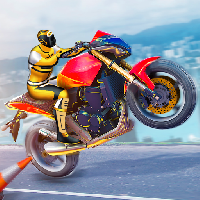
STUNT BIKER 3D















SIMILAR GAMES
































Description


Stunt Biker 3D - Unblocked Games at School
About Stunt Biker 3D - Unblocked Games at School
We present Stunt Biker 3D as a premier choice for students seeking thrilling arcade action during breaks. The game blends realistic physics with fast‑paced stunt sequences, allowing players to execute jumps, flips, and tricks on a variety of ramps and obstacles. Its unblocked status ensures seamless access from school computers without the need for external plugins or downloads.
Gameplay Overview
We describe the core mechanics that define Stunt Biker 3D. Players control a motorbike using arrow keys for movement and the space bar for jumps. Each level presents a series of checkpoints where timing and precision are essential to maintain momentum. Scoring is based on stunt complexity, landing accuracy, and speed, encouraging repeated attempts to achieve higher combos.
- Navigate through diverse environments such as skate parks, urban streets, and desert trails.
- Perform flips, wheelies, and nitro boosts to maximize points.
- Collect power‑ups that temporarily enhance speed or stunt capacity.
Key Features
The following list highlights the standout attributes of Stunt Biker 3D that keep players engaged:
- Realistic Physics Engine: Simulates weight, momentum, and air resistance for authentic stunt execution.
- Multiple Bike Models: Choose from sport, cruiser, and off‑road variants, each with unique handling characteristics.
- Progressive Level Design: Levels increase in difficulty, introducing new obstacles and tighter time constraints.
- Leaderboards Integration: Compare scores with classmates directly through the school network.
- Customization Options: Adjust bike colors and upgrade performance attributes using earned in‑game currency.
How to Access Stunt Biker 3D at School
We guide users through the steps to launch Stunt Biker 3D from the school’s approved portal:
- Open a web browser on the school computer and navigate to https://ubgatschool.gitlab.io/.
- Locate the Stunt Biker 3D icon on the homepage and click to start the game.
- Allow any necessary permissions for audio and input devices when prompted.
- Select a preferred bike and difficulty level before entering the first checkpoint.
If the portal experiences loading delays, refreshing the page or clearing the browser cache often resolves the issue.
Tips and Strategies
We share proven tactics to help players dominate the leaderboards:
- Master the Jump Timing: Initiate jumps just before the ramp edge to achieve longer airtime.
- Use Nitro Sparingly: Activate nitro at the peak of a ramp to gain a speed boost for consecutive tricks.
- Chain Tricks Wisely: Perform a flip followed immediately by a wheelie to maintain momentum.
- Upgrade Wisely: Prioritize handling improvements over raw speed for better control on complex courses.
- Study Level Layouts: Memorize obstacle placements to anticipate required maneuvers.
Community and Updates
We foster an active community where players exchange strategies and high‑score records. Regular updates introduce new levels, bikes, and visual enhancements, keeping the experience fresh. Participation in weekly challenges often yields bonus rewards that can be redeemed for in‑game upgrades.
Advanced Tricks
Advanced players can unlock secret maneuvers by executing specific trick sequences within a single run. These include:
- Backflip to wheelie transition: Initiate a backflip, land on the front wheel, and immediately shift into a wheelie.
- Double Spin Flip: Perform two consecutive 360‑degree spins while airborne, requiring precise rotation control.
- Boost‑Linked Trick: Combine a nitro boost with a mid‑air flip to increase combo multiplier.
Mastering these tricks not only boosts scores but also showcases skill to peers on the shared leaderboards.
Play Stunt Biker 3D for free on Unblocked Games at School,
Discover a platform packed with thousands of top-tier games, completely ad-free and simple to enjoy from any location. Get ready for endless fun with our unblocked games—play using your keyboard or just a click!
How to Play Unblocked Games on ubgatschool.gitlab.io
Steps to Play
Playing unblocked games on ubgatschool.gitlab.io is straightforward and designed for quick access, especially in environments like schools where gaming sites might be restricted. Follow these steps to get started:
- Access the Website: Open a web browser (Chrome, Firefox, or Edge work well) and navigate to ubgatschool.gitlab.io. The site is optimized for instant play, so no downloads or installations are needed.
- Browse the Game Library: Once on the homepage, you’ll see a collection of games across various genres like action, adventure, puzzle, sports, or strategy. Scroll through or use any available search or category filters to find a game that interests you.
- Select a Game: Click on a game’s icon or title. The site is designed to load games directly in your browser, often in fullscreen mode for an immersive experience.
- Start Playing: Most games launch immediately without additional setup. Some may have a brief loading screen. If a game offers customizable settings (like graphics or sound), adjust them before starting for the best experience.
- Bypass Restrictions (if needed): If the site is blocked on a school network, try accessing it via a different device or network. Some users report success by using .io or GitLab links, as these are less likely to be flagged by filters.
- Enjoy Ad-Free Gaming: The platform aims to provide an uninterrupted experience, so you can focus on gameplay without pop-ups or ads.
Game Controls
Controls vary by game genre, but below are common setups for popular types of games you’re likely to find on ubgatschool.gitlab.io. Check individual game instructions for specific details, as some titles may use unique configurations.
Action/Platformer Games (e.g., Stickman games, Retro Bowl)
- Arrow Keys or WASD: Move character left, right, up, or jump.
- Spacebar: Attack, shoot, or perform special actions.
- Shift: Sprint or dodge (in some games).
- Mouse Click: Aim or interact with objects (if applicable).
Puzzle/Strategy Games (e.g., 2048, Geometry Dash)
- Arrow Keys: Navigate tiles, pieces, or menus.
- Mouse Click/Drag: Select or move items (common in match-3 or building games).
- Spacebar: Pause or confirm selections.
- Enter: Start or restart the game.
Sports/Racing Games (e.g., Slope Game)
- Arrow Keys or WASD: Steer vehicle or control player movement.
- Spacebar: Accelerate or jump.
- Shift: Brake or boost (in racing titles).
- Mouse: Adjust camera angle or aim (in some sports games).
Multiplayer/Arcade Games (e.g., Slither.io)
- Mouse: Guide character or cursor (especially in .io-style games).
- Left Click: Boost speed or activate abilities.
- Arrow Keys: Alternative movement controls in some titles.
- Spacebar: Pause or trigger special moves.
Tips for Smooth Gameplay
- Check Game Instructions: Many games include a tutorial or control guide on the start screen.
- Adjust Settings: If a game feels laggy, lower graphics settings (if available) to match your device’s capabilities.
- Stay Responsive: Some games, especially action titles, rely on quick reactions, so ensure your keyboard or mouse is functioning well.
- Bookmark the Site: Save ubgatschool.gitlab.io for easy access during breaks.
This setup should help you dive into gaming on ubgatschool.gitlab.io with ease. If you add specific games or control schemes later, consider including a “Controls” section on each game’s page for clarity. Enjoy gaming!
How to Play Unblocked Games on ubgatschool.gitlab.io
Steps to Play
Playing unblocked games on ubgatschool.gitlab.io is straightforward and designed for quick access, especially in environments like schools where gaming sites might be restricted. Follow these steps to get started:
- Access the Website: Open a web browser (Chrome, Firefox, or Edge work well) and navigate to ubgatschool.gitlab.io. The site is optimized for instant play, so no downloads or installations are needed.
- Browse the Game Library: Once on the homepage, you’ll see a collection of games across various genres like action, adventure, puzzle, sports, or strategy. Scroll through or use any available search or category filters to find a game that interests you.
- Select a Game: Click on a game’s icon or title. The site is designed to load games directly in your browser, often in fullscreen mode for an immersive experience.
- Start Playing: Most games launch immediately without additional setup. Some may have a brief loading screen. If a game offers customizable settings (like graphics or sound), adjust them before starting for the best experience.
- Bypass Restrictions (if needed): If the site is blocked on a school network, try accessing it via a different device or network. Some users report success by using .io or GitLab links, as these are less likely to be flagged by filters.
- Enjoy Ad-Free Gaming: The platform aims to provide an uninterrupted experience, so you can focus on gameplay without pop-ups or ads.
Game Controls
Controls vary by game genre, but below are common setups for popular types of games you’re likely to find on ubgatschool.gitlab.io. Check individual game instructions for specific details, as some titles may use unique configurations.
Action/Platformer Games (e.g., Stickman games, Retro Bowl)
- Arrow Keys or WASD: Move character left, right, up, or jump.
- Spacebar: Attack, shoot, or perform special actions.
- Shift: Sprint or dodge (in some games).
- Mouse Click: Aim or interact with objects (if applicable).
Puzzle/Strategy Games (e.g., 2048, Geometry Dash)
- Arrow Keys: Navigate tiles, pieces, or menus.
- Mouse Click/Drag: Select or move items (common in match-3 or building games).
- Spacebar: Pause or confirm selections.
- Enter: Start or restart the game.
Sports/Racing Games (e.g., Slope Game)
- Arrow Keys or WASD: Steer vehicle or control player movement.
- Spacebar: Accelerate or jump.
- Shift: Brake or boost (in racing titles).
- Mouse: Adjust camera angle or aim (in some sports games).
Multiplayer/Arcade Games (e.g., Slither.io)
- Mouse: Guide character or cursor (especially in .io-style games).
- Left Click: Boost speed or activate abilities.
- Arrow Keys: Alternative movement controls in some titles.
- Spacebar: Pause or trigger special moves.
Tips for Smooth Gameplay
- Check Game Instructions: Many games include a tutorial or control guide on the start screen.
- Adjust Settings: If a game feels laggy, lower graphics settings (if available) to match your device’s capabilities.
- Stay Responsive: Some games, especially action titles, rely on quick reactions, so ensure your keyboard or mouse is functioning well.
- Bookmark the Site: Save ubgatschool.gitlab.io for easy access during breaks.
This setup should help you dive into gaming on ubgatschool.gitlab.io with ease. If you add specific games or control schemes later, consider including a “Controls” section on each game’s page for clarity. Enjoy gaming!