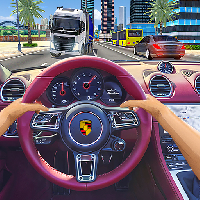
TRAFFIC JAM 3D GAME















SIMILAR GAMES
































Description


Traffic Jam 3d Game - Unblocked Games at School
About Traffic Jam 3d Game - Unblocked Games at School
The Traffic Jam 3d Game offers an immersive driving experience that can be enjoyed directly within a school environment. Designed to bypass typical network restrictions, the title is hosted on the dedicated UBG at School platform, ensuring seamless access without the need for additional plugins or downloads. Players navigate crowded city streets, avoid collisions, and test reflexes while managing traffic flow in real time.
Why This Title Is a Top Choice for Students
Several factors contribute to the popularity of this unblocked game among school audiences. The 3D graphics provide a realistic visual depth that captures attention, while the simple control scheme allows quick learning curves. Additionally, the game’s short session durations fit perfectly into break periods, making it an ideal pastime between classes.
Gameplay Mechanics Explained
Players control a vehicle from a third‑person perspective, using arrow keys or on‑screen buttons to accelerate, brake, and steer. The objective is to maneuver through densely packed lanes, avoid obstacles, and keep the traffic moving smoothly. Each successful pass earns points, and streaks trigger bonus multipliers that boost the final score.
Core Controls
- Arrow Keys – Steering, acceleration, and braking.
- Space Bar – Emergency brake for sudden stops.
- R Key – Reset the current level.
Scoring System
The scoring mechanism rewards precision and speed. Points are awarded for each vehicle passed without collision, and multipliers increase with consecutive successful maneuvers. Bonus points are granted for completing specific challenges, such as clearing a intersection within a time limit.
Visual and Audio Design
The game features high‑resolution 3D models of cars and cityscapes, rendered with smooth textures and dynamic lighting. Weather effects, such as rain and fog, add realism and occasional strategic depth. Background music consists of upbeat electronic tracks that maintain energy levels without overwhelming gameplay.
Graphics Settings
Players can adjust the graphics quality through an in‑game menu, selecting between low, medium, and high presets. Lower settings improve performance on older hardware, while higher settings enhance visual fidelity for those with modern devices.
Accessing the Game at School
To play Traffic Jam 3d Game, simply navigate to the UBG at School website from any school computer. No registration is required, and the game loads instantly in the browser. If a firewall blocks the site, using a school‑approved VPN or requesting unblocking through the IT department can restore access.
Step‑by‑Step Guide to Starting Play
- Open the UBG at School homepage.
- Locate the Traffic Jam 3d Game thumbnail.
- Click the thumbnail to launch the game in a new tab.
- Review the on‑screen tutorial for basic controls.
- Select your preferred graphics setting and begin.
Strategies for Advanced Players
Mastery of Traffic Jam 3d Game requires more than reflexes; strategic planning enhances performance. Consider the following tactics:
- Anticipate Traffic Flow – Observe patterns and predict vehicle movements.
- Utilize Lane Changing – Shift lanes early to avoid bottlenecks.
- Conserve Boosts – Reserve special boost items for critical moments.
- Practice Timing – Perfect the timing of acceleration and braking to maintain momentum.
Common Pitfalls to Avoid
New players often encounter these mistakes:
- Oversteering, which leads to loss of control.
- Ignoring the minimap, resulting in missed shortcuts.
- Using constant acceleration, causing collisions at intersections.
- Neglecting to adjust graphics settings, leading to lag on older machines.
Frequently Asked Questions
Can the game be played on mobile devices? The platform is optimized for desktop browsers, but users can access a lightweight version on tablets with compatible browsers.
Is there a multiplayer mode? Currently, the game offers a single‑player experience, but future updates may introduce competitive leaderboards.
How are scores saved? Scores are stored locally in the browser session; refreshing the page will reset the current run.
Community and Support
Players can share tips, high scores, and strategies through the UBG at School discussion board. Moderators are available to answer technical questions and assist with any access issues.
Conclusion
Traffic Jam 3d Game stands out as a compelling, easy‑to‑access unblocked title that blends realistic 3D visuals with addictive gameplay. Its presence on the UBG at School platform ensures that students can enjoy quick gaming sessions during breaks without compromising network policies. By mastering the controls, applying strategic tactics, and optimizing settings, players can achieve high scores and fully experience the thrill of navigating bustling virtual traffic.
Play Traffic Jam 3d Game for free on Unblocked Games at School,
Discover a platform packed with thousands of top-tier games, completely ad-free and simple to enjoy from any location. Get ready for endless fun with our unblocked games—play using your keyboard or just a click!
How to Play Unblocked Games on ubgatschool.gitlab.io
Steps to Play
Playing unblocked games on ubgatschool.gitlab.io is straightforward and designed for quick access, especially in environments like schools where gaming sites might be restricted. Follow these steps to get started:
- Access the Website: Open a web browser (Chrome, Firefox, or Edge work well) and navigate to ubgatschool.gitlab.io. The site is optimized for instant play, so no downloads or installations are needed.
- Browse the Game Library: Once on the homepage, you’ll see a collection of games across various genres like action, adventure, puzzle, sports, or strategy. Scroll through or use any available search or category filters to find a game that interests you.
- Select a Game: Click on a game’s icon or title. The site is designed to load games directly in your browser, often in fullscreen mode for an immersive experience.
- Start Playing: Most games launch immediately without additional setup. Some may have a brief loading screen. If a game offers customizable settings (like graphics or sound), adjust them before starting for the best experience.
- Bypass Restrictions (if needed): If the site is blocked on a school network, try accessing it via a different device or network. Some users report success by using .io or GitLab links, as these are less likely to be flagged by filters.
- Enjoy Ad-Free Gaming: The platform aims to provide an uninterrupted experience, so you can focus on gameplay without pop-ups or ads.
Game Controls
Controls vary by game genre, but below are common setups for popular types of games you’re likely to find on ubgatschool.gitlab.io. Check individual game instructions for specific details, as some titles may use unique configurations.
Action/Platformer Games (e.g., Stickman games, Retro Bowl)
- Arrow Keys or WASD: Move character left, right, up, or jump.
- Spacebar: Attack, shoot, or perform special actions.
- Shift: Sprint or dodge (in some games).
- Mouse Click: Aim or interact with objects (if applicable).
Puzzle/Strategy Games (e.g., 2048, Geometry Dash)
- Arrow Keys: Navigate tiles, pieces, or menus.
- Mouse Click/Drag: Select or move items (common in match-3 or building games).
- Spacebar: Pause or confirm selections.
- Enter: Start or restart the game.
Sports/Racing Games (e.g., Slope Game)
- Arrow Keys or WASD: Steer vehicle or control player movement.
- Spacebar: Accelerate or jump.
- Shift: Brake or boost (in racing titles).
- Mouse: Adjust camera angle or aim (in some sports games).
Multiplayer/Arcade Games (e.g., Slither.io)
- Mouse: Guide character or cursor (especially in .io-style games).
- Left Click: Boost speed or activate abilities.
- Arrow Keys: Alternative movement controls in some titles.
- Spacebar: Pause or trigger special moves.
Tips for Smooth Gameplay
- Check Game Instructions: Many games include a tutorial or control guide on the start screen.
- Adjust Settings: If a game feels laggy, lower graphics settings (if available) to match your device’s capabilities.
- Stay Responsive: Some games, especially action titles, rely on quick reactions, so ensure your keyboard or mouse is functioning well.
- Bookmark the Site: Save ubgatschool.gitlab.io for easy access during breaks.
This setup should help you dive into gaming on ubgatschool.gitlab.io with ease. If you add specific games or control schemes later, consider including a “Controls” section on each game’s page for clarity. Enjoy gaming!
How to Play Unblocked Games on ubgatschool.gitlab.io
Steps to Play
Playing unblocked games on ubgatschool.gitlab.io is straightforward and designed for quick access, especially in environments like schools where gaming sites might be restricted. Follow these steps to get started:
- Access the Website: Open a web browser (Chrome, Firefox, or Edge work well) and navigate to ubgatschool.gitlab.io. The site is optimized for instant play, so no downloads or installations are needed.
- Browse the Game Library: Once on the homepage, you’ll see a collection of games across various genres like action, adventure, puzzle, sports, or strategy. Scroll through or use any available search or category filters to find a game that interests you.
- Select a Game: Click on a game’s icon or title. The site is designed to load games directly in your browser, often in fullscreen mode for an immersive experience.
- Start Playing: Most games launch immediately without additional setup. Some may have a brief loading screen. If a game offers customizable settings (like graphics or sound), adjust them before starting for the best experience.
- Bypass Restrictions (if needed): If the site is blocked on a school network, try accessing it via a different device or network. Some users report success by using .io or GitLab links, as these are less likely to be flagged by filters.
- Enjoy Ad-Free Gaming: The platform aims to provide an uninterrupted experience, so you can focus on gameplay without pop-ups or ads.
Game Controls
Controls vary by game genre, but below are common setups for popular types of games you’re likely to find on ubgatschool.gitlab.io. Check individual game instructions for specific details, as some titles may use unique configurations.
Action/Platformer Games (e.g., Stickman games, Retro Bowl)
- Arrow Keys or WASD: Move character left, right, up, or jump.
- Spacebar: Attack, shoot, or perform special actions.
- Shift: Sprint or dodge (in some games).
- Mouse Click: Aim or interact with objects (if applicable).
Puzzle/Strategy Games (e.g., 2048, Geometry Dash)
- Arrow Keys: Navigate tiles, pieces, or menus.
- Mouse Click/Drag: Select or move items (common in match-3 or building games).
- Spacebar: Pause or confirm selections.
- Enter: Start or restart the game.
Sports/Racing Games (e.g., Slope Game)
- Arrow Keys or WASD: Steer vehicle or control player movement.
- Spacebar: Accelerate or jump.
- Shift: Brake or boost (in racing titles).
- Mouse: Adjust camera angle or aim (in some sports games).
Multiplayer/Arcade Games (e.g., Slither.io)
- Mouse: Guide character or cursor (especially in .io-style games).
- Left Click: Boost speed or activate abilities.
- Arrow Keys: Alternative movement controls in some titles.
- Spacebar: Pause or trigger special moves.
Tips for Smooth Gameplay
- Check Game Instructions: Many games include a tutorial or control guide on the start screen.
- Adjust Settings: If a game feels laggy, lower graphics settings (if available) to match your device’s capabilities.
- Stay Responsive: Some games, especially action titles, rely on quick reactions, so ensure your keyboard or mouse is functioning well.
- Bookmark the Site: Save ubgatschool.gitlab.io for easy access during breaks.
This setup should help you dive into gaming on ubgatschool.gitlab.io with ease. If you add specific games or control schemes later, consider including a “Controls” section on each game’s page for clarity. Enjoy gaming!